

To download OneDrive files, you can use a web browser, the synced OneDrive folder on your computer, or the mobile app. Select the file or select multiple files, choose Download, and your browser will begin downloading. If you download multiple files or a folder, OneDrive creates a zip file. Size and file count limits apply.
OneDrive is cloud storage provided by Microsoft. Files stored in OneDrive are saved in Microsoft’s cloud infrastructure. When you view files through the OneDrive website or through a synced OneDrive folder on your computer, you are usually viewing cloud-based files unless they have been downloaded locally.
Files can appear on your computer without being fully stored there. Downloading a file means saving a local copy to your device storage.

To download files using a browser, visit the OneDrive website and sign in to your account. Browse to the file or folder you want.
When you hover over a file, a circle appears. Select the circle to select the file. To select multiple files, continue selecting the circles next to each item. Once selected, the Download option appears in the upper menu.
Select Download. Your browser will begin downloading the file. If multiple files or a folder are selected, OneDrive creates a zip file containing all the files.
If your browser prompts you, choose Save or Save As and select the location where you want to store the file. Or, if no location is chosen, the file is saved to your downloads folder by default.
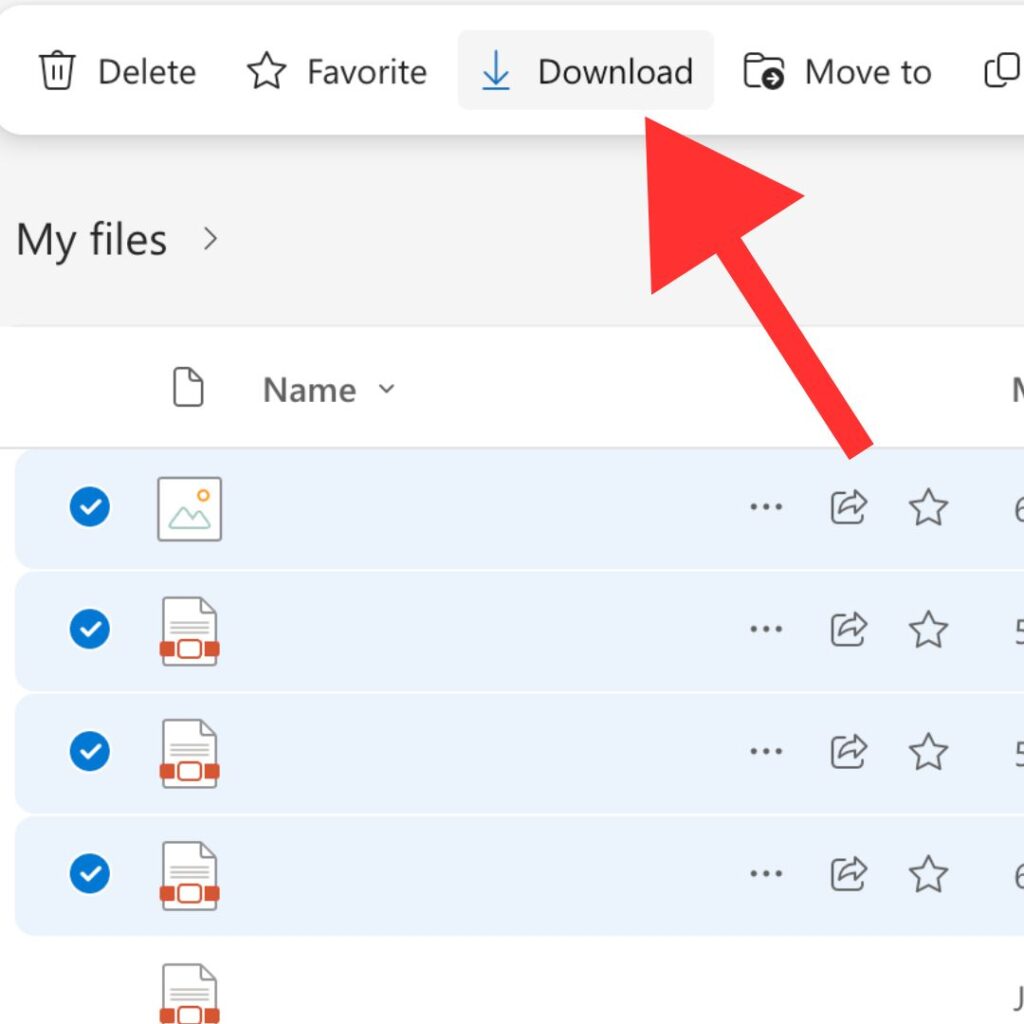
When multiple files are selected and Download is chosen, OneDrive compresses them into a zip file.
The following limits apply:
If you open a folder and choose Download without selecting specific files, OneDrive will download all the files inside that folder.
If an error message appears during download, it is often due to exceeding file size or file count limits.
To use the synced folder, OneDrive must first be installed and signed in on your device. This creates a OneDrive folder in Finder on a Mac or File Explorer on Windows.
Files in this folder may still be stored in the cloud. Opening a file will download it to your computer automatically.
If you want all files stored locally, your device must have sufficient storage space.
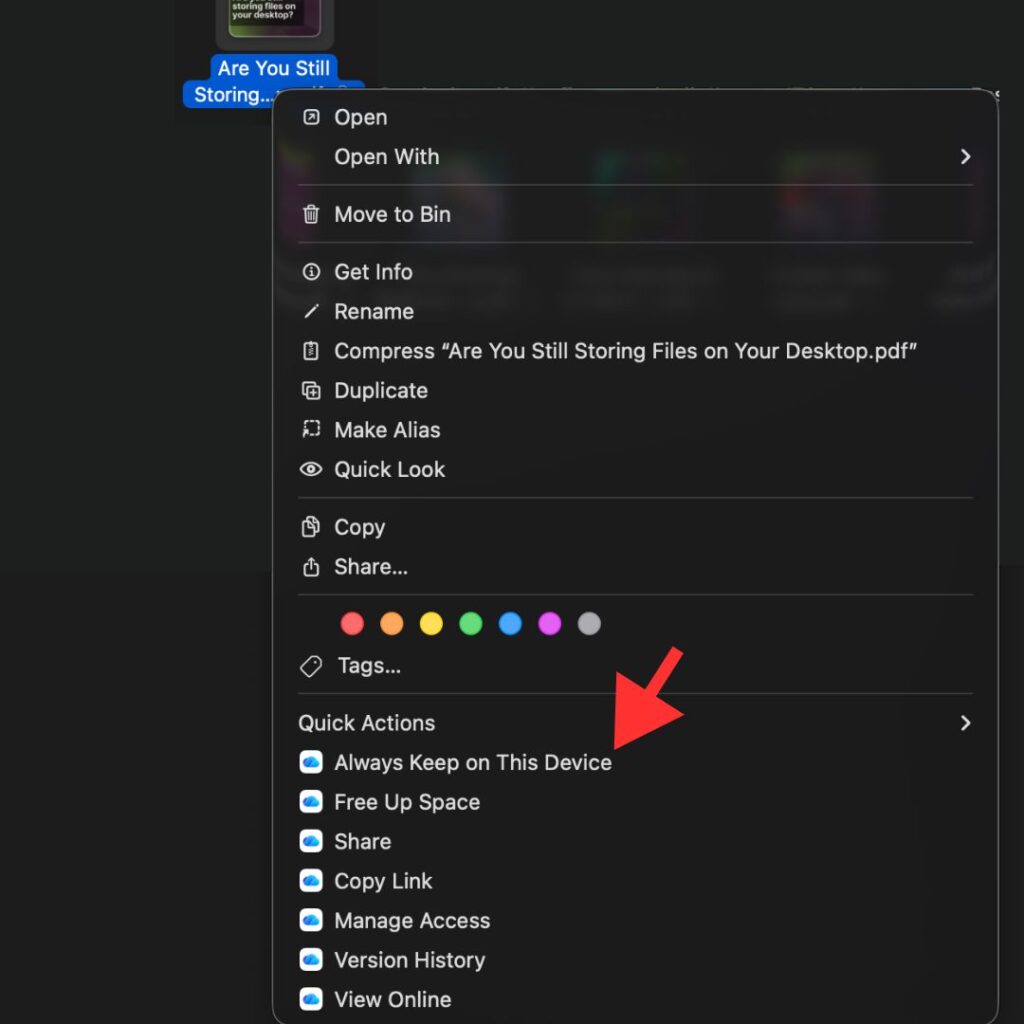
In the synced OneDrive folder, you can control whether a file remains stored locally.
Right click a file or folder and select the option to always keep it downloaded. This ensures the file stays saved on your device rather than being removed to free up storage space.
If this option is not selected, OneDrive may remove the local copy while keeping the file available in the cloud.
This setting only applies within the synced folder on your computer. It does not apply to files viewed through the web browser.
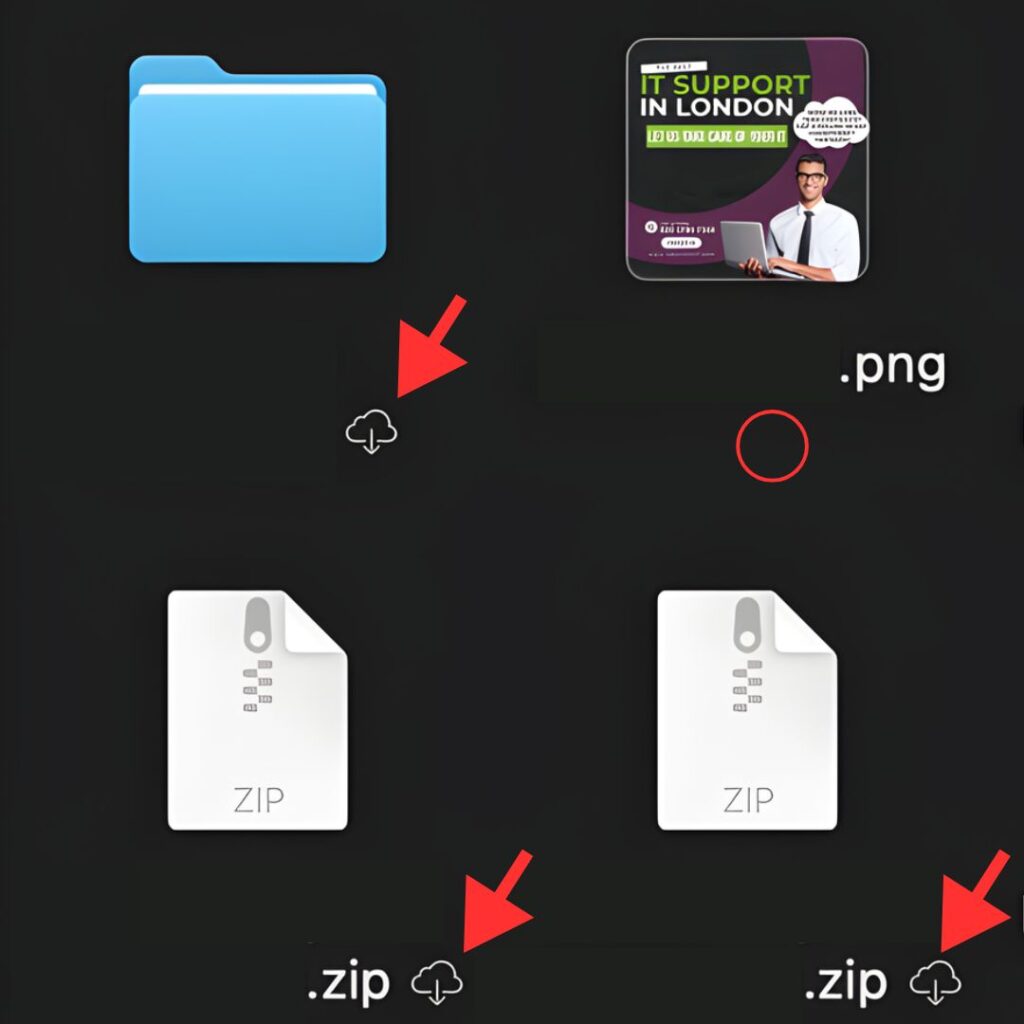
OneDrive downloads can fail for several reasons. One of the most common causes is exceeding file size or file count limits when downloading multiple files or folders. If too many files are selected, or if the total compressed size is too large, the download may not complete and an error message may appear.
Downloads can also fail if your device does not have enough available storage space to save the files locally. Even if OneDrive supports large files in the cloud, your computer must still have sufficient free space to store them.
Internet connection issues can interrupt the process, especially when downloading large files or folders. In some work or school environments, certain browsers may not support downloading folders or multiple files, which can also prevent the download from starting.
In addition, files protected by sensitivity labels or information rights management that are larger than 4MB are not included in zip downloads. This can make it appear as though files are missing, when in fact they have been excluded due to protection policies.
Checking file size, file count, local storage space, and browser compatibility usually helps identify the cause of the problem.

If downloads regularly fail, files appear missing, or storage space keeps filling up, the issue is usually configuration, not OneDrive itself. Sync settings, permissions, and SharePoint access all affect how downloads behave.
At Labyrinth Technology, we help businesses fix these issues properly. That includes OneDrive setup, storage planning, permissions, and user guidance so files download and stay available when they should.
Knowing how to download OneDrive files sounds simple, but in real business environments it often causes frustration. File limits, sync behaviour, and security controls all matter. Once everything is set up correctly, downloading becomes predictable and reliable.
If you want help reviewing your OneDrive setup or resolving ongoing download problems, contact Labyrinth Technology. We support businesses across London and help make Microsoft tools work the way people expect.







© 2026 Labyrinth Technology Limited. Company number 04326900. Web Design by Netzoll
Empowering London Businesses with Efficient IT Solutions to Save Time and Stay Ahead of the Competition.