


In this month’s Central London Lawyer magazine from the Westminster & Holborn Law Society, David Henderson-Begg, MD of Labyrinth Technology talks about why London law firms should be thinking seriously about remote working and the ramifications. Have a look at what he has to say.
In this month’s London Chamber of Commerce Magazine
In this month’s edition of the excellent London Business Matters” magazine, official publication of the London Chamber of Commerce and Industry, you will find our prediction on page 10 that virtual collaboration tools are going to be big in 2021. As business owners and managers demand higher productivity levels, IT can play its part, and Labyrinth Technology can help you make the digital transformation. Read it here.
How To Automatically Open Web Pages Every Day In Edge And Chrome
Maybe you have your favourite web pages filed nicely away in folders in your browser. Maybe you actually have a folder called “start”, filled with everything you need open for the day (BBC sport, company SharePoint site, your website, LinkedIn, Twitter and so on)?
But did you know you can have them open up automatically as soon as you open your browser window? How great would that be?
Here’s how to set that up, for both Microsoft Edge and Google Chrome;
Microsoft Edge:
Open up all of the websites that you want to open every day
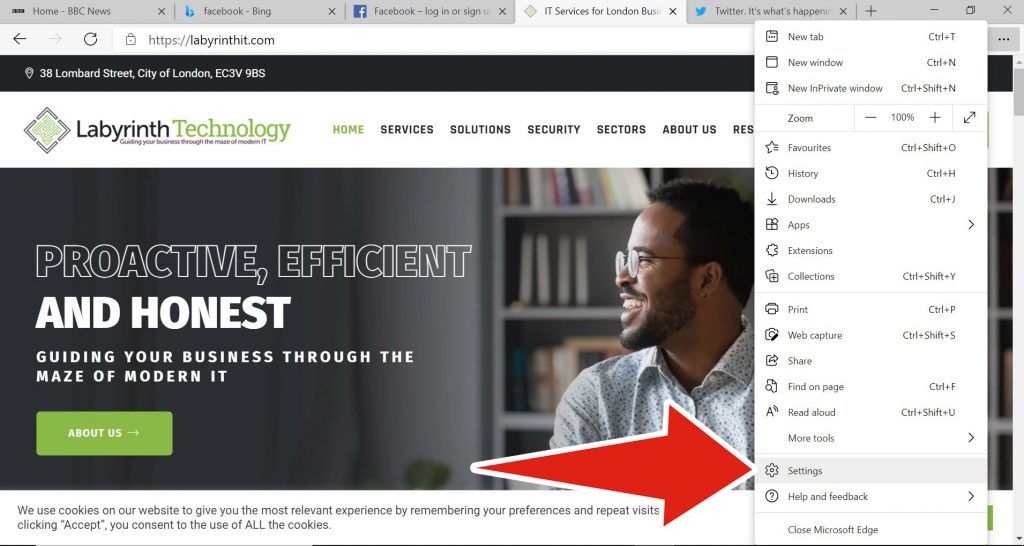
Once they are open and loaded, click the 3 dots in the top right-hand corner of the browser and select Settings.
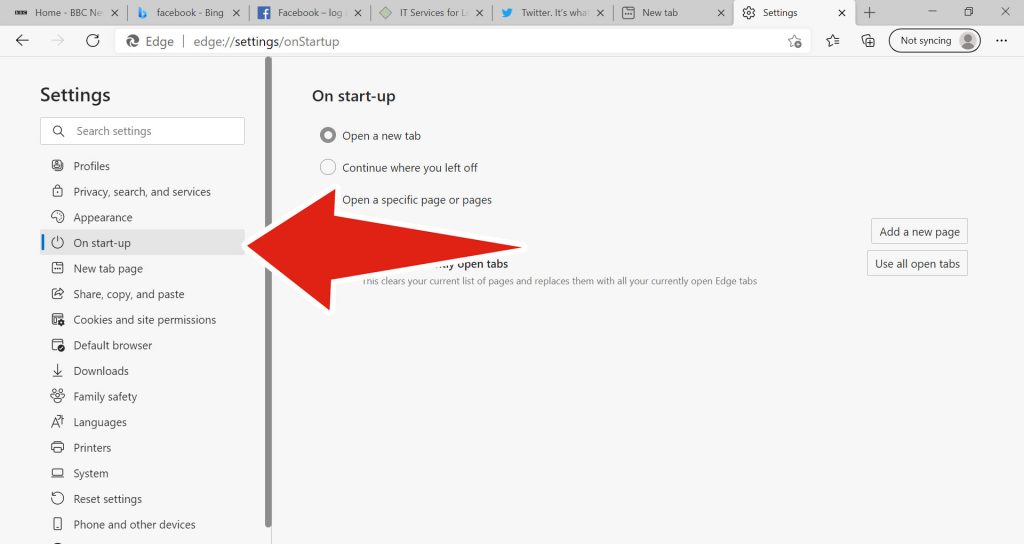
In the Settings windows, on the left-hand panel you should see On start-up. Click this.
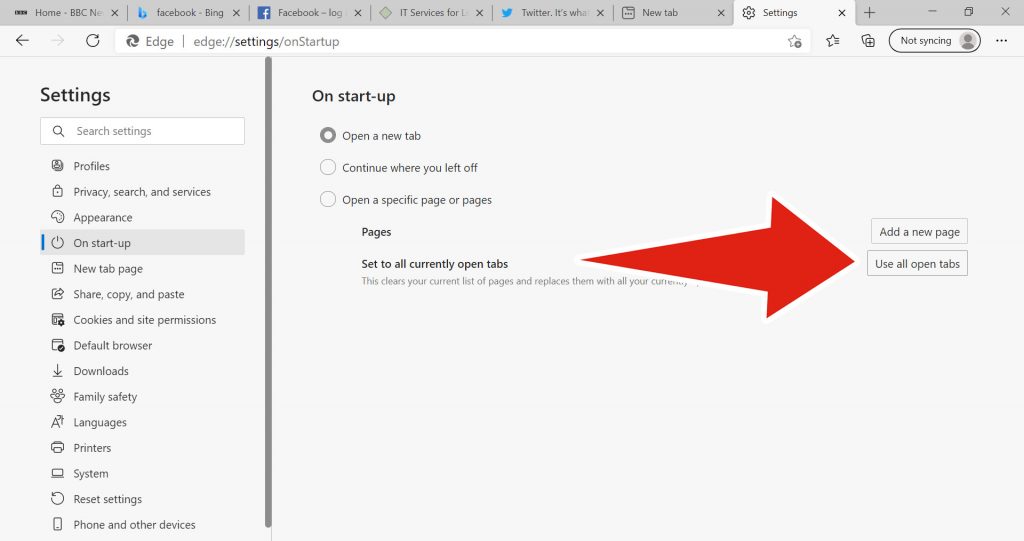
Click the option to “Use all open tabs”
All of the pages you currently have open should be listed, and you’re done! No need to click save.
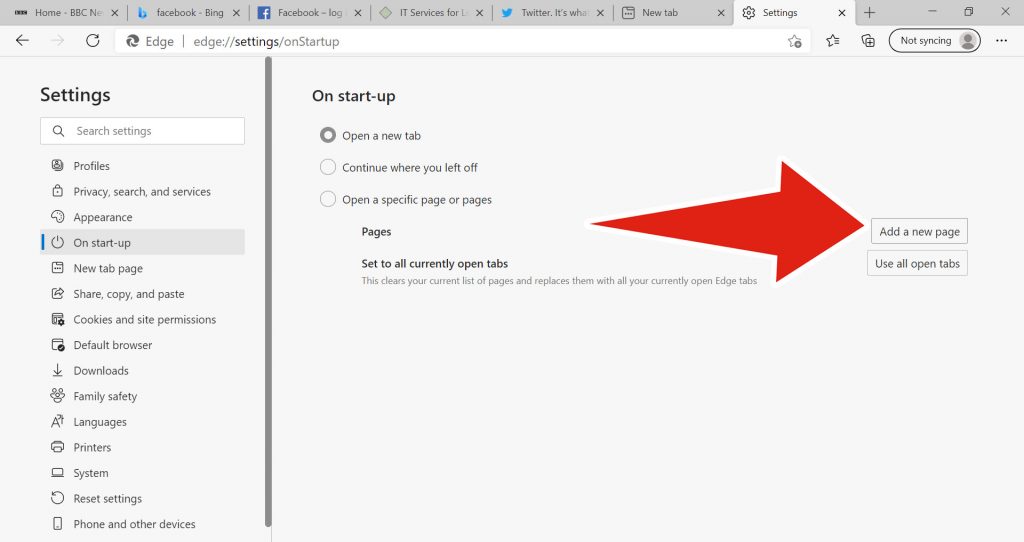
And remember, as and when you find new pages you like or need on a daily basis, you can manually add the URL of these pages. Just follow the same steps but instead of clicking “Use all open tabs”, click “Add a new page” and copy/paste the URL into the pop up box that you’d like to start up automatically.
Google Chrome:
Open up all of the websites that you want to open every day
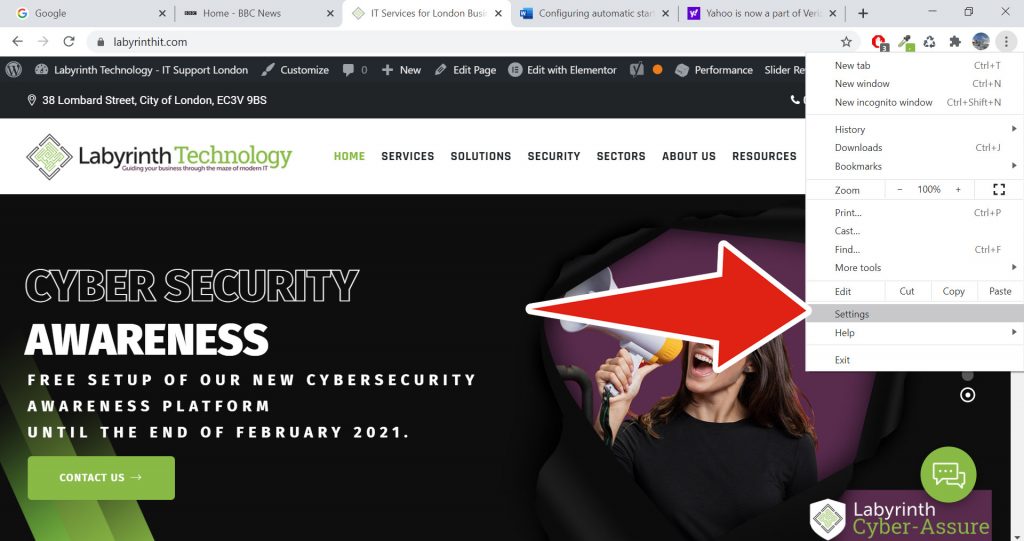
Once they are open and loaded, click the 3 dots in the top right-hand corner of the browser and select Settings.
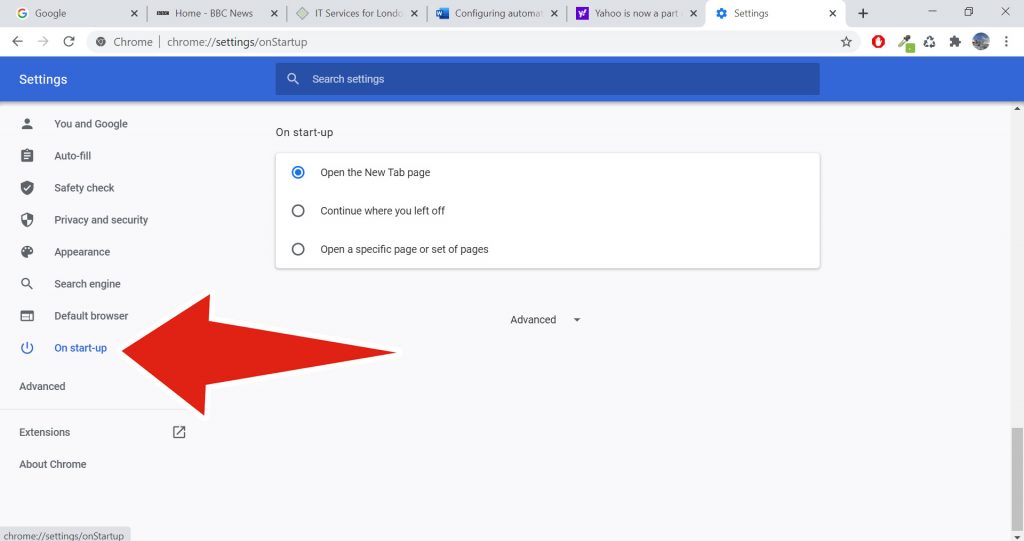
In the Settings windows, scroll down until you see the box titled On start-up.
Click the option to “Open a specific page or set of pages” and a drop down menu will appear. Click “Use current pages”.
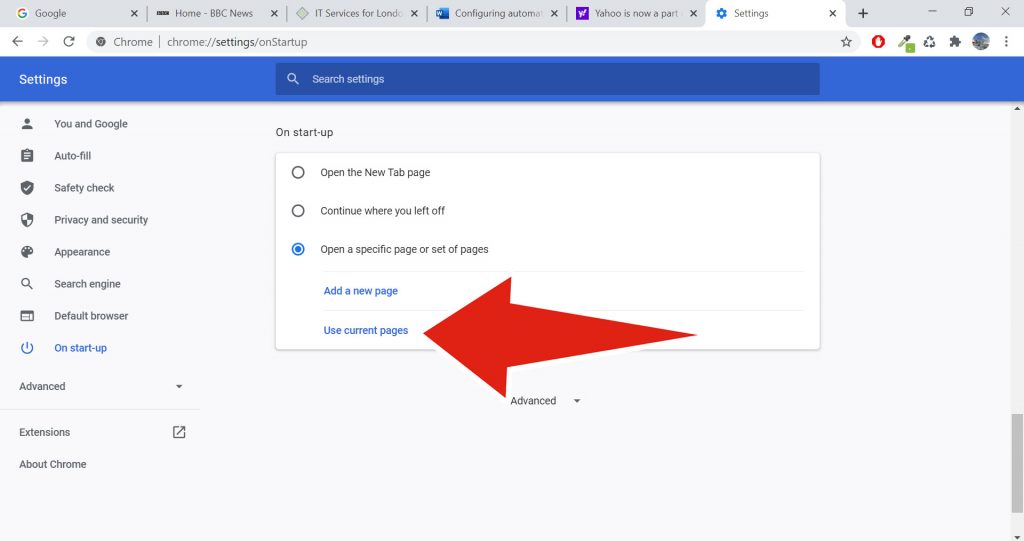
All of the pages you currently have open should be listed, and you’re done! No need to click save.
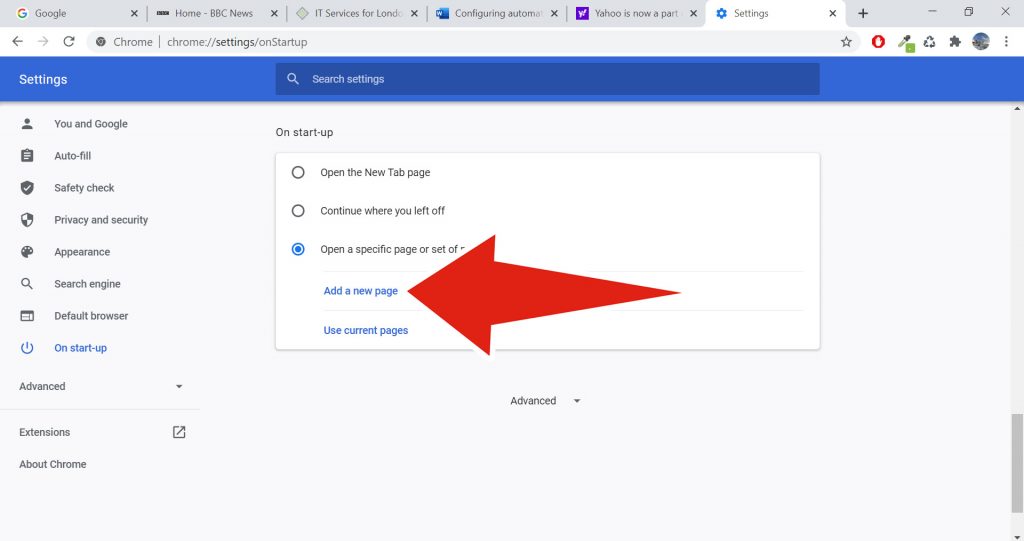
And remember, as and when you find new pages you like or need on a daily basis, you can manually add the URL of these pages. Just follow the same steps but instead of clicking “Use current pages”, click “Add a new page” and copy/paste the URL into the pop up box that you’d like to start up automatically.
Skype For Business Online Is Ending; Move To Microsoft Teams Now

In July 2019 Microsoft announced that Skype For Business Online was being retired this year, on July 31st. Of course that was before anyone had heard of Covid-19 or Coronavirus, and a lot has changed since then. So businesses could be forgiven for not having this as a priority on their to-do list.
But one thing hasn’t changed; that retirement date still stands.
So if your business is using Skype For Business Online, you now have just 177 days from today to move to Microsoft Teams. Microsoft themselves issued a reminder about this on Monday, and say that “you may choose to engage a Microsoft Partner to help plan or execute your upgrade from Skype for Business to Teams”.

Labyrinth Technology, a Microsoft Silver Partner is able to provide a cost effective and complete solution for your move to Teams. We can provide customised help in respect of the video conferencing, Microsoft 365 integration, collaboration, voice and other apps that form part of this widely used business communication and collaboration platform.

Contact us today to see how we can make your move to Teams happen seamlessly.
Create Or Schedule A Meeting In Outlook Using An Email In Your Inbox
It’s a scenario that many people will have been through. A subject is being discussed via email, and it gets more and more complex and intense as time goes on. Then someone (usually the boss!) decides that “we need a meeting to sort this out”, and you get the job. So far so easy.
But all of the detail is in those emails, and after all of the backwards and forwards from all of your colleagues, there can be quite a lot of them! So how do you take that email string and turn it into the supporting documentation for a meeting? How do you schedule a meeting from an email? Well, it’s easy, and here’s how…
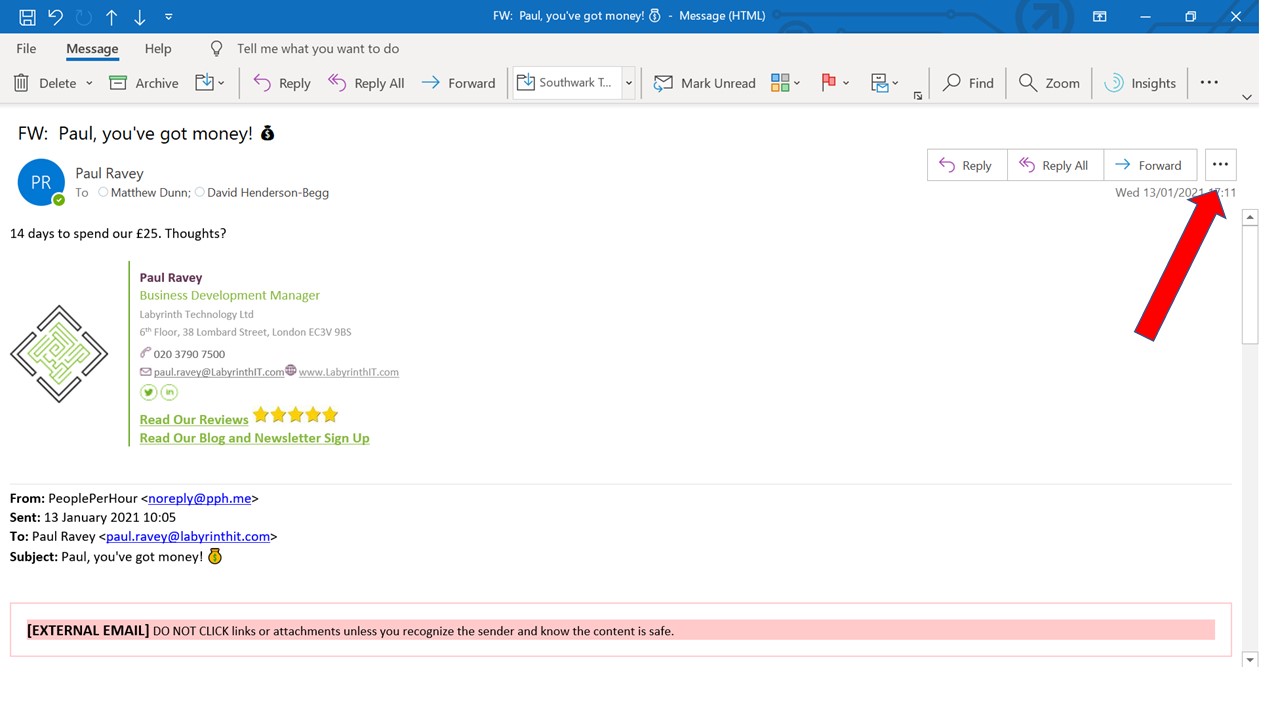
First, select the email that has triggered the need for a meeting (either the last in a string, or the one where the boss says “let’s have a meeting!”). In the top right hand corner you will see 3 dots.
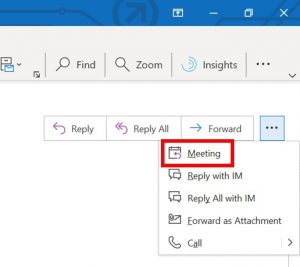
Clicking on the 3 dots brings up a pop out menu with 5 options. We are only interested in the “Meeting” option here.
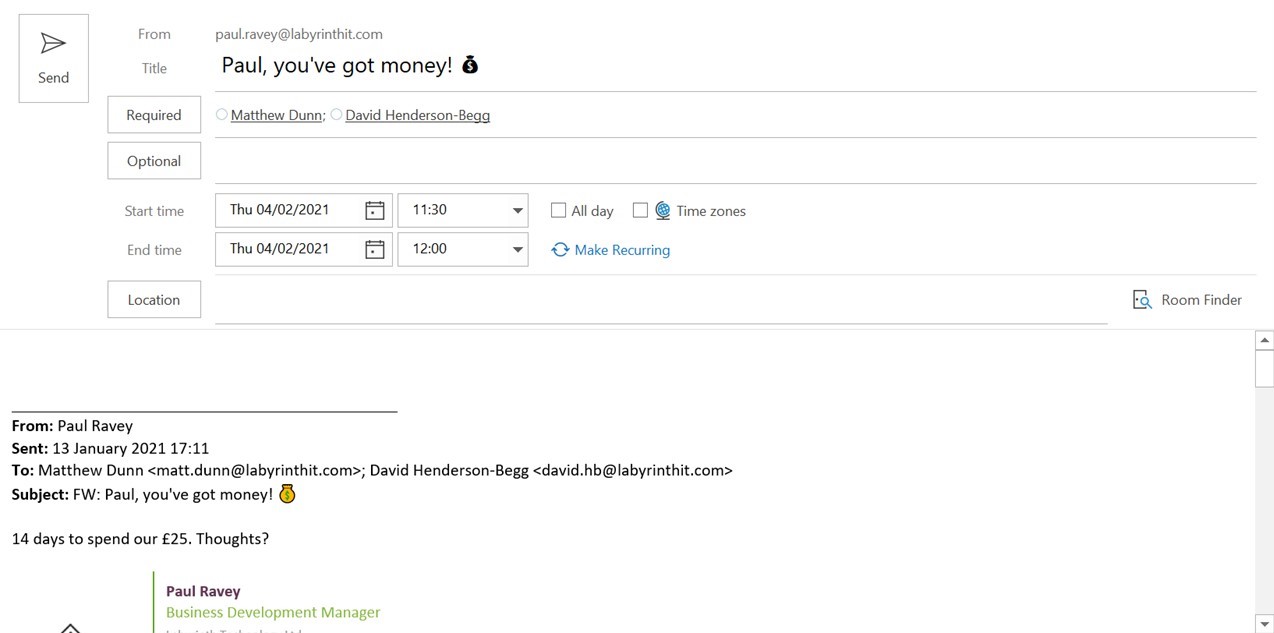
Click “Meeting” and up pops the Outlook meeting scheduler, automatically populated with the recipients of the email you are using to schedule the meeting. From here you can do the normal things such as add attendees, set the meeting date/time to suit, pick a location etc. But crucially, you will see that your email string is displayed underneath the meeting details.
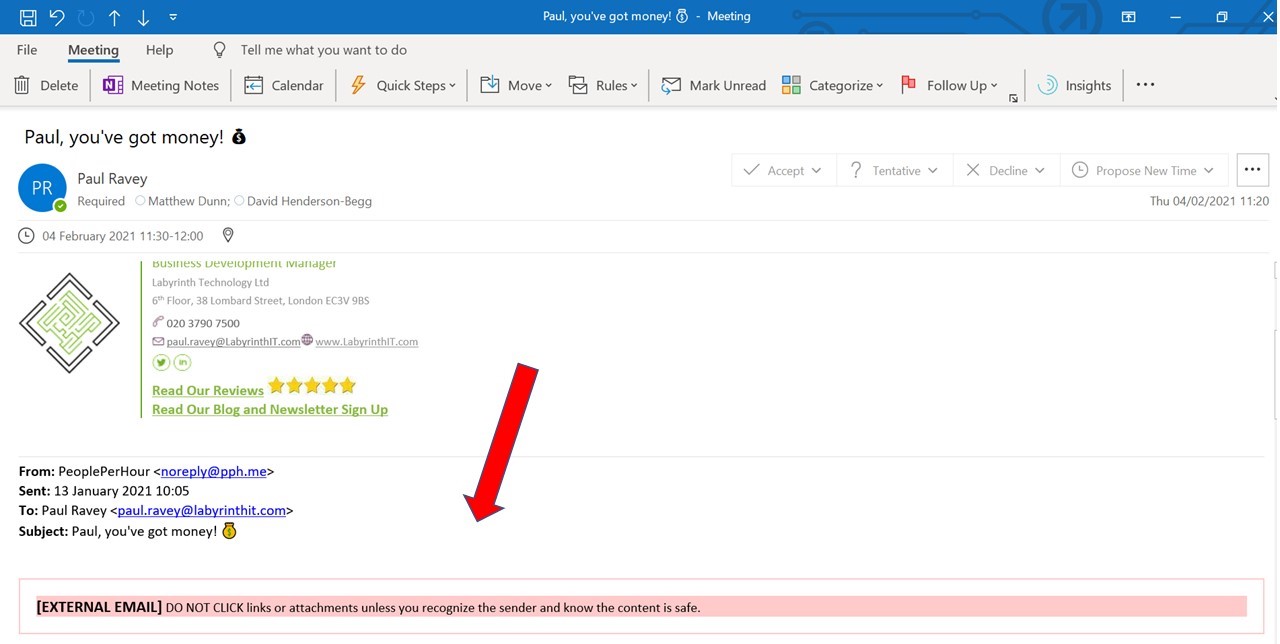
Set your meeting details as required, then send as normal. And when the meeting invite is received, the email string is attached as supporting documents for the meeting. Simple and easy, and no excuses for anyone to say “what emails?“.
How To Easily Minimise All Open Windows And Get Back To The Desktop
Today’s devices are very powerful, and you can have lots of different apps and programs open at the same time without any problem. But what if you have downloaded a file, shortcut or whatever to the desktop? How many times have you found yourself in the situation of having to click the “minimise” button on every single open window? How much of a pain is that?
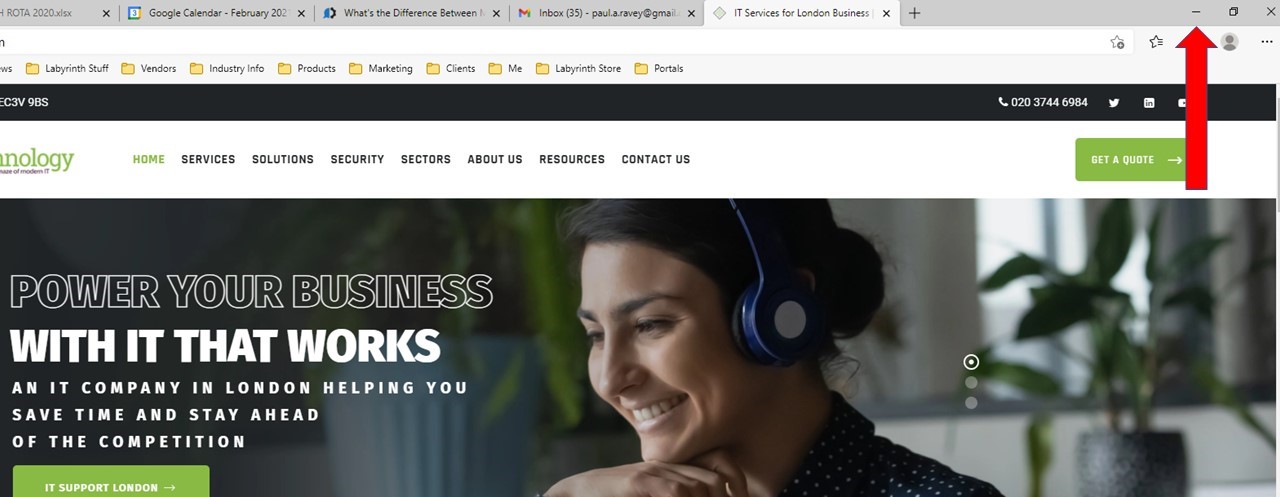
So, in today’s hints and tips from Labyrinth Technology you can see a really neat and fun way to get back to your desktop instantly. Simply shake!!
Check this out!
Ransomware Attack: A company paid millions to decrypt their data. Then the hackers came back again!

A cautionary tale for all UK businesses is detailed by the UK’s National Cyber Security Centre (NCSC) in a blog post about the rise of ransomware. The company in question fell victim to a ransomware attack and paid cyber criminals £6.5million for the decryption key to restore their network They were then targeted by the exact same ransomware gang under two weeks later after failing to examine why the attack was able to happen in the first place. They had paid the first ransom, sat back, and then relaxed. Big mistake!
The vulnerability was left open and was immediately exploited again by cyber criminals who have no emotion or sense of fairness when it comes to their victims. This is business to them, and nothing more.
That is why firms shouldn’t just take the “it will never happen to me” approach to cyber security. If you haven’t brought in a good Managed Security Service Provider (MSSP) to fully protect your systems you obviously increase the risk of cyber attack. With 65,000 cyber attacks on UK businesses every day, your attitude must be that IT WILL HAPPEN, so get advice today! And if you do find yourself under attack it’s not enough to just pay a ransom or whatever demands the cyber criminal make and then do nothing else. Speak to a reputable MSSP like Labyrinth Technology to find out WHY and HOW the cyber attack occurred to make sure your business learns from the experience and is protected in the future!
The best way to avoid any of this is, of course to secure your network against cyber attacks in the first place. Simple things like using multi-factor authentication and making sure operating systems and security patches are upgraded regularly and up to date. Also make sure that you regularly backup your networks so that in the event of a successful ransomware attack your data can be restored with the least disruption possible. But while some of these things can be done “DIY”, it all needs to be part of a Unified Threat Management (UTM) approach.
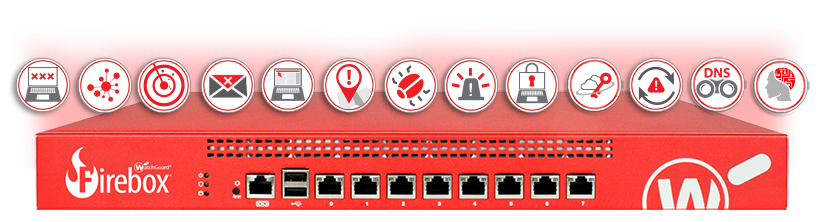
What is UTM? Well, put simply it is all of the things you need for cyber security in a single strategic package, such as;
– initial Cyber Security Consulting: to determine the risk opportunity (for criminals), appetite (for you) and therefore options available. If you don’t know your weaknesses and vulnerabilities, they cannot be addressed!
– Security Awareness Tools: the process of increasing awareness within management and staff of what cyber crime is and how it works, so as to minimise the “human error” factor. Do your staff have adequate knowledge of phishing and business email compromise attacks for instance?
– Focussed Email and Network Security: looking at specific “tools for the job”, such as encryption, firewalls and mobile device management.
– An ongoing Managed Security Service: making sure that everything continues to provide what you want – Cyber security!
If you would like to have a discussion on how Labyrinth Technology can help your business in the fight against cybercrime, and find out about our special offer on our Security Awareness Tools, contact us now.
How To Change Default Fonts In Outlook
As with so many of our hints and tips, an in-house IT department can usually fix niggly little issues, but in their own time. They usually have more pressing issues to deal with as opposed to sorting out the fonts in your Outlook for instance. Unlike most in-house IT departments however, an outsourced IT support company like Labyrinth Technology has strict SLA’s to work to, so we never have the luxury of saying “we’ll get round to it when we can”!
That’s why we like to think about the many different ways we can support our clients, and one of them is to understand and keep track of what we get asked about regularly, and then provide a simple answer to simple questions.
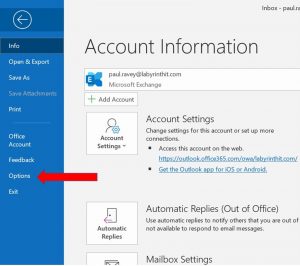
One such thing is when our clients have “company standard” fonts and sizes which they specifically need to use on every email. However, for whatever reason these haven’t been installed as defaults on their device and they have to keep selecting them when they create a new email. So, here is how to set those defaults.
Within Outlook, select File in the top left hand corner, and Options towards the bottom of the file menu to being up the Outlook Options Window.
Within the Outlook Options window select Mail from the left pane and then Stationary and Fonts.
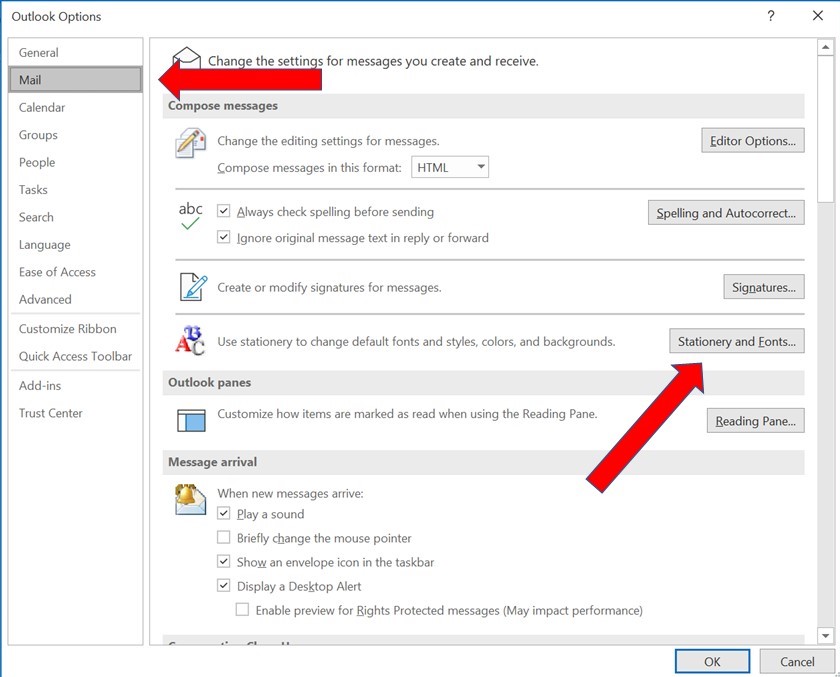
This should open the Signatures and Stationary window with the Personal Stationery tab selected.
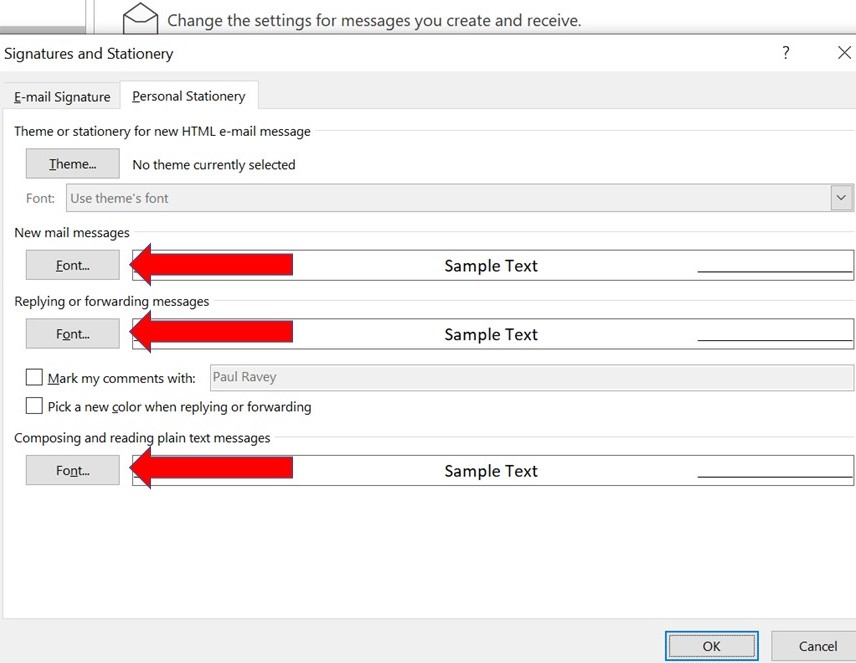
There are three sections here; New Mail Messages, Replying or forwarding messages and Composing and reading plain text messages.
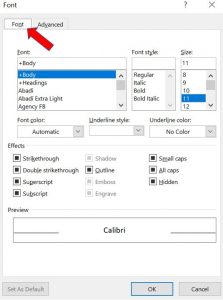
Select Font besides each option to create your default for each specific one. And from there on in it’s just using the standard font editor. You will see that there is an Advanced tab available, but we wouldn’t recommend that you go playing with that unless you are very confident in your abilities. But now you will be able to set your fonts to match the company standard, or even set your personal preferences so that you use a font/colour/size for new emails, a different combination for replying or forwarding emails, and even a third set of options when you send emails in plain text.
Stand out from the crowd with email fonts!
How To Get Shared Contacts Showing In Your Outlook Address Book
With more and more people working remotely, the ability for business owners and managers to be able to centrally update information that can be accessed by all employees is vital. But sometimes what gets forgotten is actually explaining to the employee what they need to do to make the best use of this information.
A classic example is if your business uses “Shared Contacts” in Outlook. You may find that a colleague or different department/office has created a list of very useful contacts (internal and external) and is happy to share these with you (we’ll do creating and sharing these lists another time). What do you do to add this list to your address book?
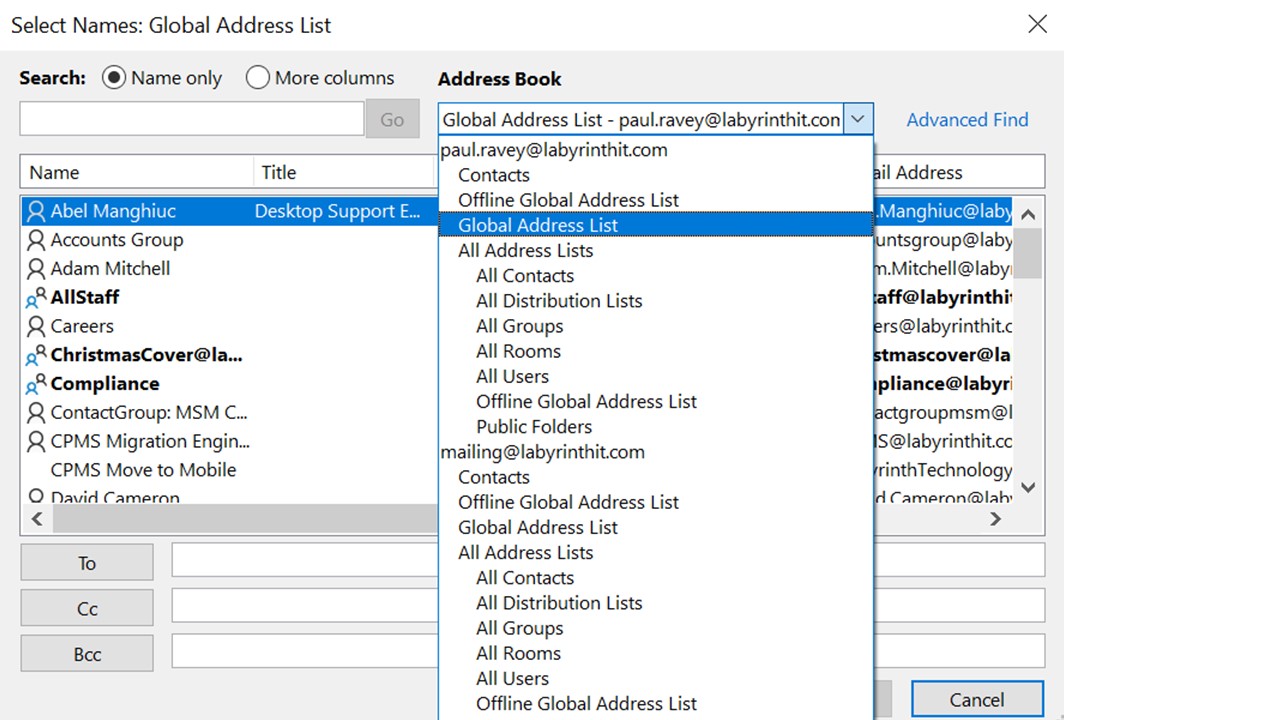
For those that don’t know, address book is what you use when you click the To or Address Book button to add contacts to a draft email you are creating.
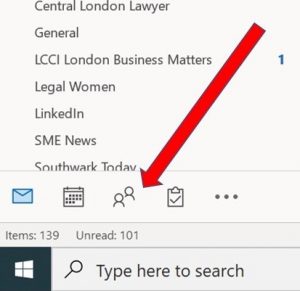
You will usually see the standard company address book (such as a “Global Address Book”), and you can select distribution lists or individuals from within that global list, but you will find that this shared list will not show up in your personal address book, which is linked to your business email address. So how do you add these shared contacts? First of all, go to your inbox and select People. Clicking on this will open up a list of Contact Groups that you have access to, and included in this should be the list that has been shared with you, but at the moment is not listed in your email address book.
Right-click the folder that has been shared with you, then choose Properties from the pop-up menu. When the Contact Properties box opens, select the the Outlook Address Book tab.
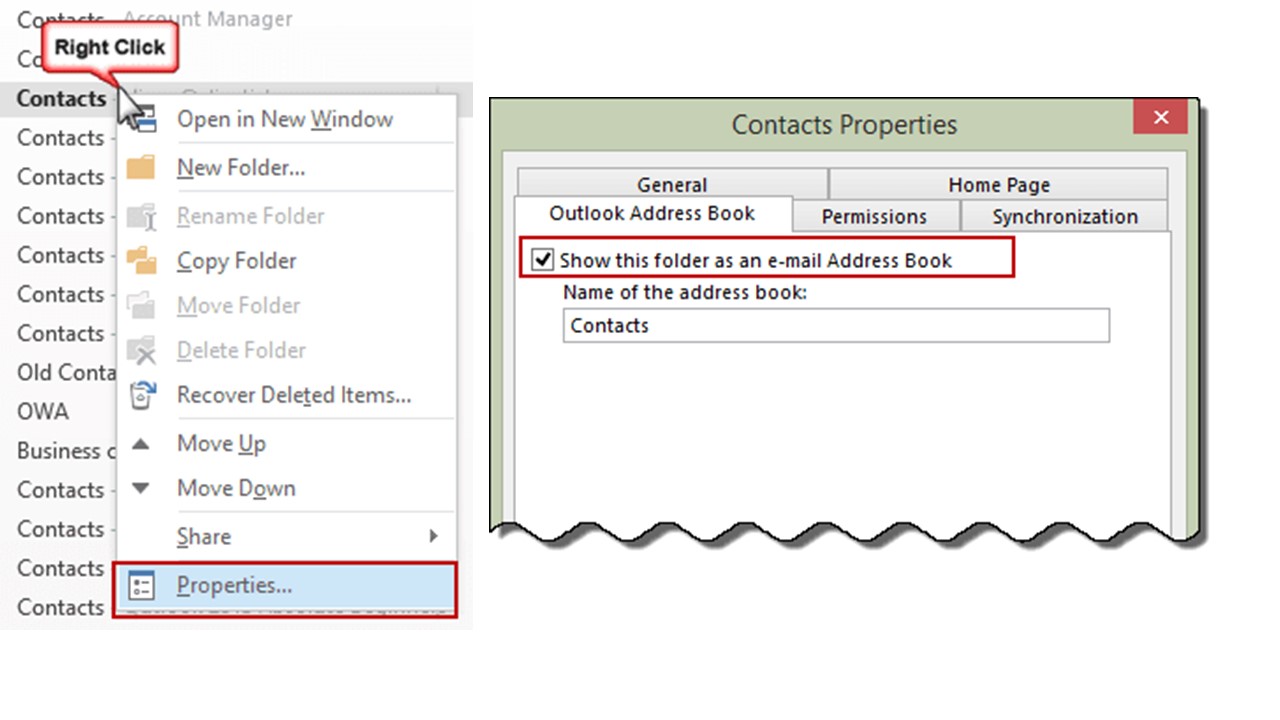
Simply check the box for Show this folder as an e-mail Address Book, and enter a new name for the new address list to make it easier to distinguish and find from other contacts folders. This name change affects only the address book display, not the actual name of the folder, meaning that when you click on To in a new email you can find this list (“My Colleagues List” for instance) and either use the whole list or access individual contact details for a member within that list.
How To Create Your Own Microsoft Colour Theme
Do you want to have a Microsoft colour theme to match your company branding for Word and Excel documents? In many cases you might turn to an outsourced marketing firm to help you develop electronic stationery and document templates, but did you know you can make your own colour themes in Word and Excel yourself without very little effort?
Here’s how to make that happen!
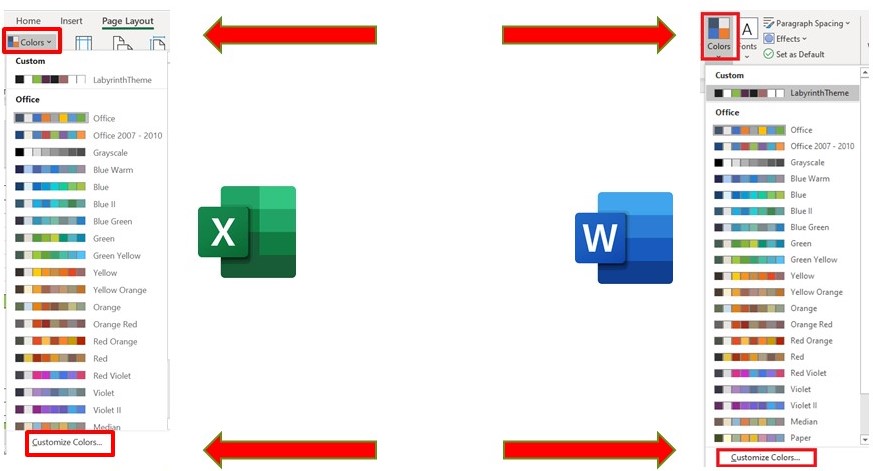
Click on the “Design” Tab in the Word menu bar or “Page Layout” in Excel at the top of the screen. Then click on “Colours” to reveal a drop down menu, from which you need to select “Customize Colours”, located right at the bottom of the menu.
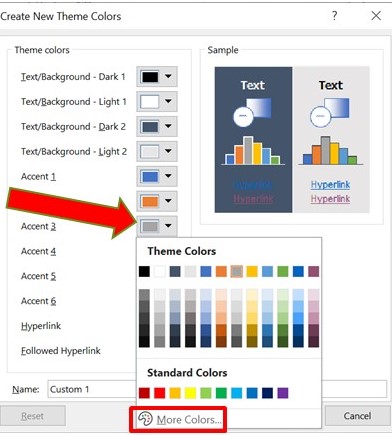
Click the button next to the theme colour you want to change (Accent 1 should generally be your primary brand colour), and then pick a colour under “Theme Colors”.
But if you are feeling REALLY adventurous (and confident!), you can create your own colours by first of all selecting “More Colours”.
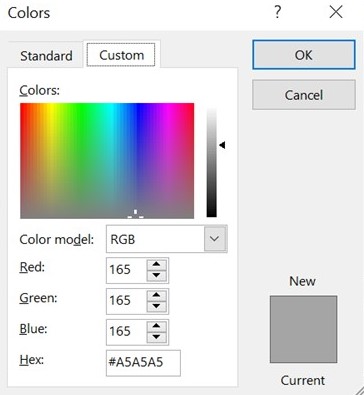
Here you can enter the RGB or HEX values of one of your company brand colours. For instance, if you want to create the Labyrinth Technology green, it’s;
R: 137 G: 186 B: 68
Go on, give it a go!
Give your theme a name and click save (you only have to do this once). Microsoft Word and Excel will now use your company brand colours any time you select this theme from Design > Colours, and you will also have access to this colour pallete when formatting text and pictures.
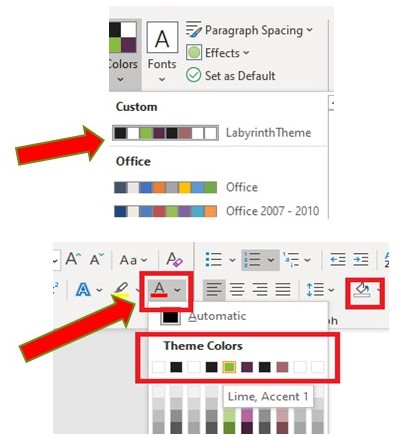
Save time and money by doing this simple process yourself. If you are one of our managed support clients, we may be able to automate deployment of this theme to your users depending on the systems you have in place. Download the guide below or get in touch with us for more information.
[download_after_email id=”22559″]
What Was The PDL Data Breach?
In 2019 two Security Researchers called Vinny Troia and Bob Diachenko first uncovered the PDL Data breach, and found that over a billion personal data records were easily accessible via an insecure server on the Dark Web. Part of the data in this breach was traced to People Data Labs of San Francisco (hence the acronym PDL), which is a data company that holds huge amounts of personal data for sale including more than a billion email addresses and phone numbers.

The information disseminated by the PDL Data breach contained records including usernames, social media accounts, email addresses and phone numbers. Fortunately, the data set did not contain passwords or national insurance numbers but the sheer volume of personal data made available on the Dark Web would make it easy for malicious actors to impersonate someone.

In an article for Wired, Troia said, “This is the first time I’ve seen all these social media profiles collected and merged with user profile information into a single database on this scale. From the perspective of an attacker, if the goal is to impersonate people or hijack their accounts, you have names, phone numbers, and associated account URLs. That’s a lot of information in one place to get you started.”
These sorts of data sets can be used by criminals for various activities such as phishing, spear-phishing, scamming, account takeovers and identity theft. Interestingly however, the intention of the PDL Data breach remains unclear, as this data was openly made available and accessible at no charge, and no individual or group laid claim to the breach. For their part PDL has claimed that the data was not obtained as a result of a security breach but was possibly posted by one of their customers.

Data leaks unfortunately happen relatively frequently, and unlike the PDL Data breach can be far more serious in execution, content or cost. For example, in 2016, 164 million LinkedIn account credentials were stolen, and in this particular data breach the data set contained passwords. Every year, the detected number of breaches increases, and whilst GDPR regulations are partly responsible for this increase, as businesses are now required by law to report data breaches, the sheer quantity of personal data that is now available online is also a major factor.
Criminals and hackers will keep improving their techniques and developing new ways to defraud individuals and businesses. For them, it is just a job or a business. It’s not personal so they have no remorse of guilt over what they do or what the repercussions are. And because they are attacking everybody, not just institutions or government bodies, it is the responsibility or everybody to do as much as possible to prevent them succeeding.

To help in this fight Labyrinth Technology has a number of security tools and services that we supply to businesses all over London to help them with their IT security needs. Whether it is cybersecurity awareness tools, consultation on cybersecurity or the implementation of security plans, as a Managed Security Service Provider in London, Labyrinth Technology has the tools to help you protect you, your colleagues, and your business.
Call us now on 020 3790 7500 or contact us to find out more.
MS Lists App now available for iPhone users
Microsoft has released the Lists app for iOS iPhone owners. The app allows users to create and share lists, keep track of team events & projects, and track issues.
Microsoft trailed the Lists app at its Build 2020 conference in May. Since then it has rolled out the List app for Microsoft Teams and the web version for Microsoft 365 (Desktop) customers across the world. Now the Lists app is available from the Apple App Store.
You can use the Lists app instead of a spreadsheet or physical clipboard for things like managing students’ progress or keeping track of visitors. It is designed to work with Microsoft 365 apps, including Excel, SharePoint, Power Apps, Power Automate and Power BI. Lists is an updated take on Sharepoint lists, which can consist of people, links, pictures, dates, and more.
The iOS app should help users manage and create lists while on the move.
Microsoft says users can track and manage lists, see recent and favourite lists, view lists offline, edit lists, add pics with QR codes, share track lists, view ready-made templates, and customize views using sort, filter and group.
Additionally, the app has dark mode support and can be used in landscape mode. There’s also Intune device management support with mobile device management (MDM) and mobile app management (MAM) policies for use in enterprise environments.
And that’s the catch! This is an enterprise app and organizations need an Office 365 commercial subscription that includes SharePoint to use it.
Microsoft is planning on delivering improvements designed for Lists usage on the iPad soon. It’s also working on a Lists app for Android phones but there is no firm indication when that will be available.
To find out more about this or any other Microsoft 365 product for your business please contact us today!
4 Basic Elements of Todays IT For Business
Labyrinth Technology has been working with businesses of all shapes and sizes for nearly 20 years. Our only aim is to provide an honest, efficient and proactive service so that we can help our clients get the most from their IT. So in that spirit here is a quick guide to 4 basic elements of IT and IT support in today’s business world, as explained by our Business Support Director, Matt Dunn.
OUTSOURCED IT SUPPORT is when an IT company provides IT services as opposed to you having to employ your own team to do this. Why? As our name suggests, IT is a Labyrinth of complexity, with a multitude of products, services, platforms, hardware and so on. Outsourcing your IT needs should be a cost-effective way for you to have the latest information, advice and support at your fingertips. And being fully scalable, IT outsourcing is suitable for businesses of any size and can adapt as your business grows. Advantages are;
– Usually a remote service, meaning no need for you to invest in expensive office space.
– Fully governed by contractual SLA’s, meaning no more waiting for your IT department “to get around to it”
– Scalable, meaning the outsourced IT support can grow with your business in an agile fashion.
– Cost effective; competitive pricing designed to suit your requirements and budget.
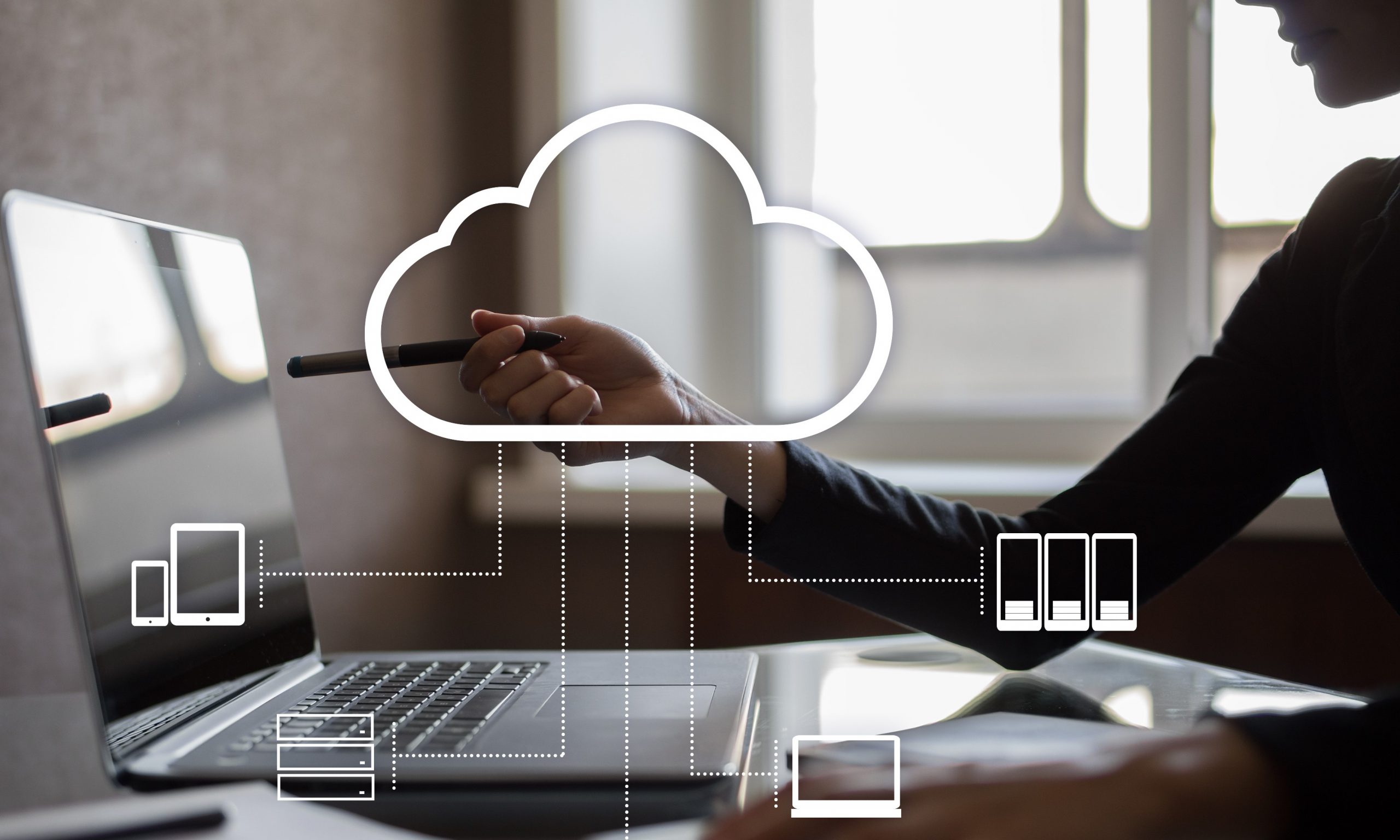
CLOUD SERVICES is a subject that can be mystifying for many. You may have heard of the terms “the cloud”, “cloud computing” or “cloud storage”, but what does they mean? Are they different services? What exactly is “the cloud”? Well, put simply, it’s the internet. Or rather the ability to connect to products, services, data and storage via the internet. For years we have all looked to a local, physical and limited space server system for the storage of our sensitive and important data. But now, businesses are taking advantage of potentially limitless cloud storage space for data, services, backup and disaster recovery. Advantages are;
– Enables users to access their data and applications from anywhere in the world where there’s an internet connection! Particularly useful if you have more than one office.
– Eliminates the significant costs involved in the set-up and maintenance of on-site servers.
– You can easily scale your service up and down at any time to meet your needs.
– If disaster strikes, you can quickly and easily restore access to your Cloud services. Usually, your data is mirrored in multiple data centres.
CYBER SECURITY is a term that is regularly in the news, but what is it? In a nutshell it is about protecting your SYSTEMS and DEVICES (laptops, tablets, phones etc) from theft, damage or attack. Enhancing your cyber security is a cornerstone of your defence against cybercrime, cyberterrorism and cyberattacks, as well as your data protection policies, and your disaster recovery capability. It encompasses such things as network, application, operational and information security, and increasingly endpoint security (or “end user” security). Advantages are;
– Reduced financial losses. The average loss per breach for a small UK business is £3,770.
– Reduced reputational loss. Do you want YOUR customers to know that your data (and possibly THEIR data has been compromised?
– Avoidance of legal action, because you may find yourself facing this if you’re the victim of a data breach and didn’t have adequate policies in place to help prevent it
– Reduced chance of missed business opportunities, not only because your reputation remains impeccable, but also because if your systems and/or website go down, in todays world that means lost leads and sales.

UNIFIED COMMUNICATIONS (UC). We no longer live in a world bound by the constraints of the office desk. As devastating as Coronavirus has been, it has liberated the thinking behind how we communicate. And the technology behind UC has moved at an overwhelming pace for most owners, managers and employees to understand. The UC world can be divided into voice calling, video calling, messaging, video conferencing, file sharing, team collaboration and much more! Ultimately EVERY business needs to communicate. But whilst video conferencing may be essential, you may NOT need team collaboration. So, understanding both your INTERNAL and EXTERNAL communications strategies will form the basis of your UC requirement. Advantages can be;
– Reduced costs, because as opposed to traditional communications UC systems operate in the cloud (that place again!).
– Better productivity, because employees will have a range of communications tools that they feel comfortable with.
– You can easily scale your service up and down at any time to meet your needs.
– Higher customer service, as now all communications (as the name suggests) can be unified, and you can always be in control of your communications, wherever you are.
IN SUMMARY, modern technology is a daunting thing for firms that simply want to focus on their day to day business. You need the best, clearest and most honest advice, and we make it clear on our website that “our approachable staff will use plain English and not confuse you with technical jargon”. So, let us guide you through the maze of modern technology.
iPhone, iPad and iPod Security Alert
If you have an iPhone, iPad or iPod, please update it now. A remote attacker cyberthreat has been identified and fixed in the 14.4 release from Apple. And remember, one of the easiest ways to protect ANY device from security threats is to allow automatic updates such as this. Do it today!
If you need any advice regarding your business mobile communications service, Labyrinth Technology can help. We have partnered with Plan.com, one of the largest mobile comms providers in the UK and a Sunday Times Top 100 firm. So you can be sure that you always have the best, most protected mobile phones for you and your colleagues.
DIY; Change Your Email Signature
Here at Labyrinth Technology we support clients of all sizes and types, and our aim is to provide the answer or solution to any questions, problems or issues that arise. We pride ourselves that our service desk takes an average of 12 seconds to answer the phone, keeping disruption to our clients to the absolute minimum. But sometimes there are requests we receive that could actually have been resolved in the time it took the client to pick up the phone, call us and make the request.
One of these is most definitely “how do I amend my email signature?” in Windows 10.
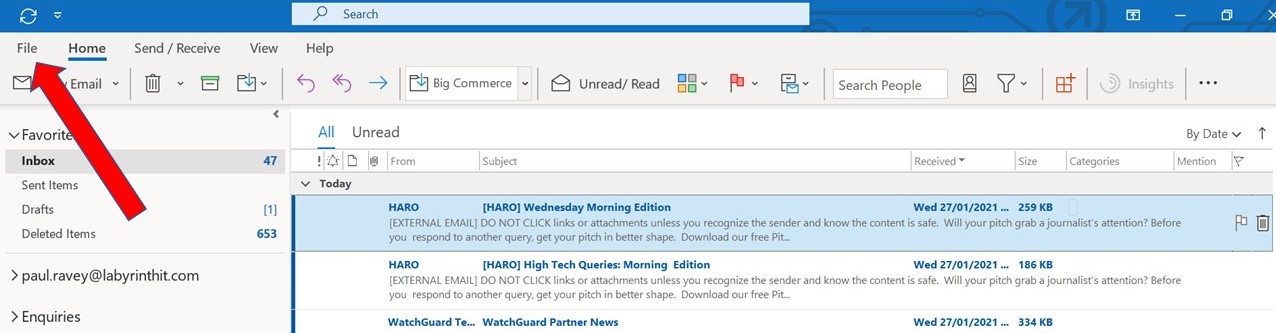
So, for those that don’t know, and to save time on the phone, here’s how. First, select “File” from your inbox screen, followed by “Options”.
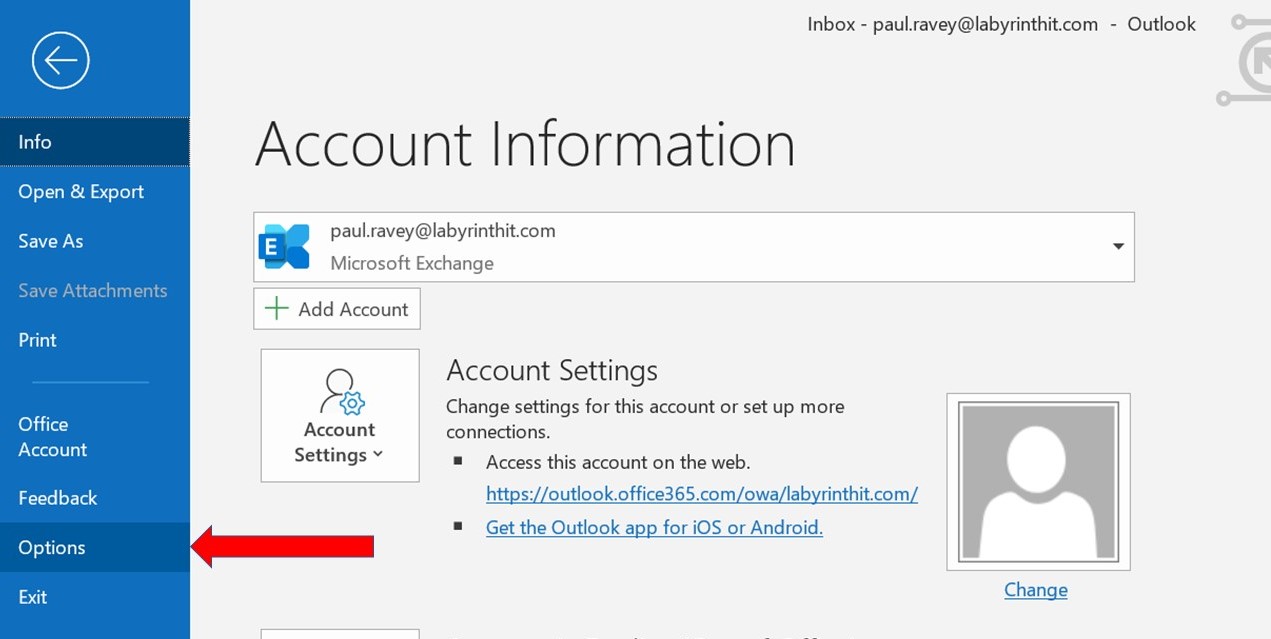
Within the Outlook Options window select Mail from the left panel, and once done, on the right you should now see an option for Signatures.
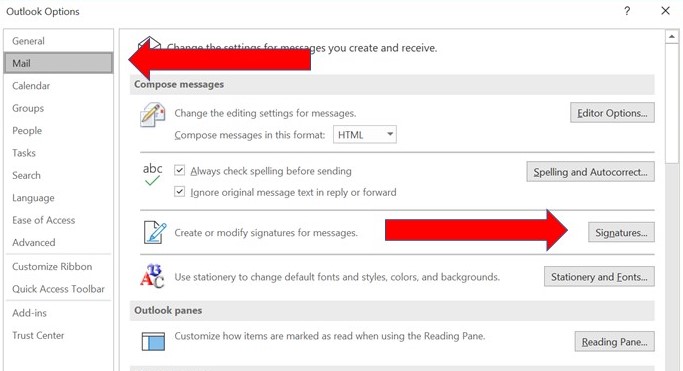
Having selected Signatures you will now see the Signatures and Stationery pop up box. If you have multiple signatures set up, select the one you want to amend, or if you are creating a new signature, select that option instead (make sure you give it a unique name).
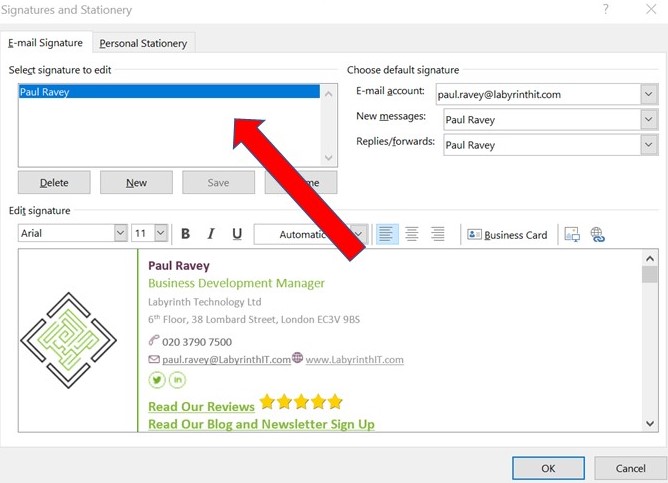
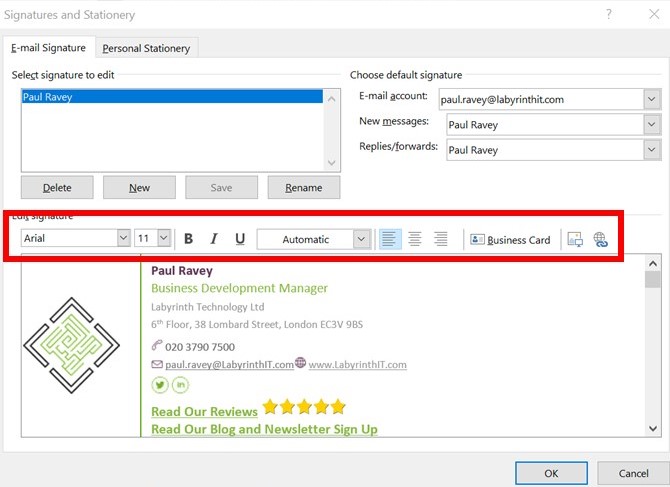
From here on in, use the editing tools to change fonts, text size, text colour, alignment and more stuff that you will probably be used to doing already in Word. You can even insert a picture (company logo?) if you are confident enough. Obviously you may be more proficient at this design phase than others, but your signature can be as simple or complex as you and the editing options allow. And don’t forget that until you click “save” none of your changes are permanent.
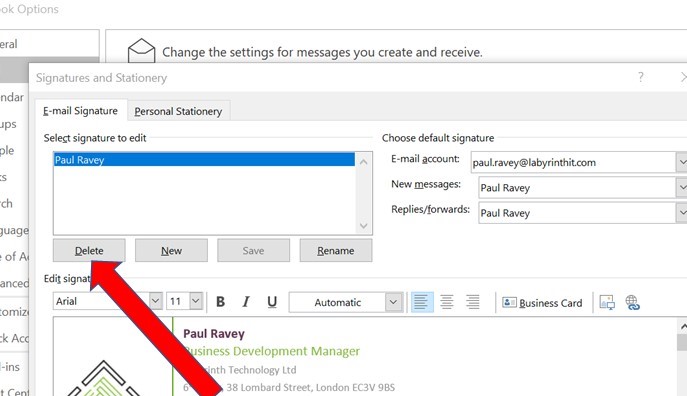
Finally, please do NOT select the “delete” option unless you are absolutely sure you want to delete a signature AND have selected the correct signature for deletion.
Automatically Download Images In Emails
It’s those little things that really get annoying. Like having to download images EVERY time you open an email. Time after time after time you open an email and a big white box is displayed where you want to see some crucial information. If this is something that you are fed up of doing, read on below and check out our simple guide on how to fix that!
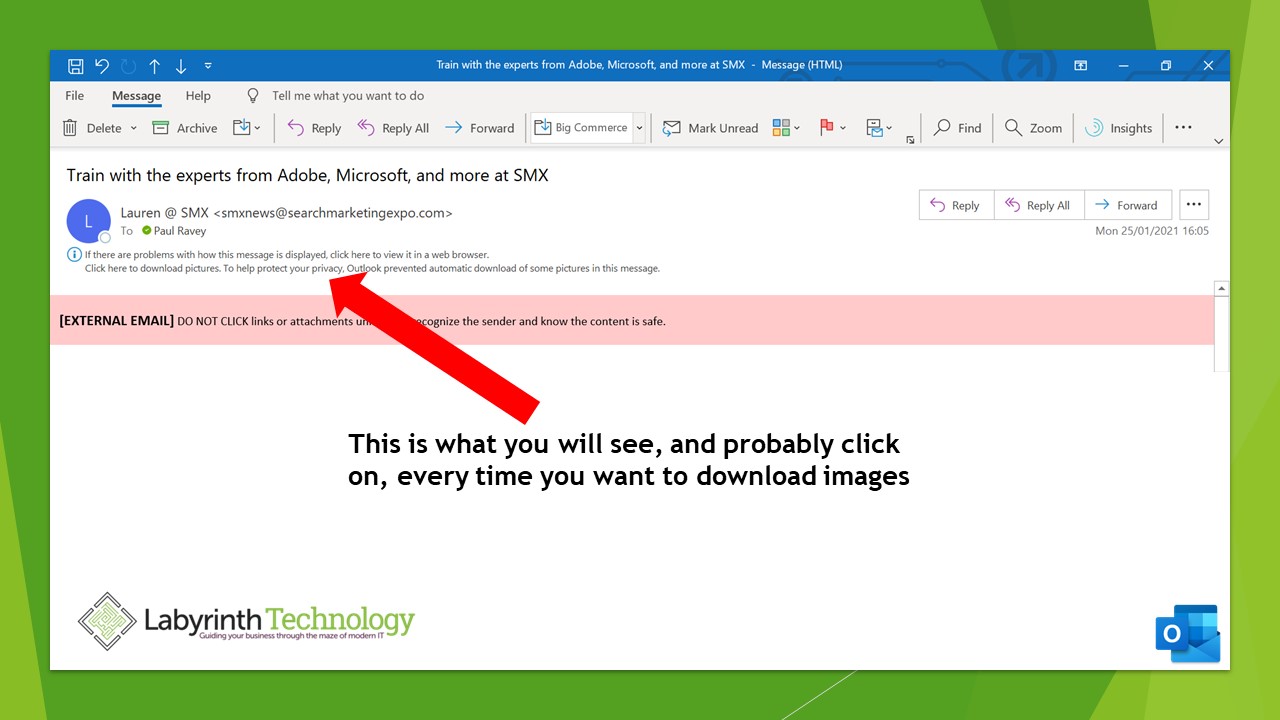
So this is what you will probably see right now when you open an email. Usually from external senders there will be some small print above a warning message regarding external senders. Instinctively, many people will simply click on “Download Pictures”, and lo and behold, there they are. But after a while, doing this for each and every new email can become tedious to say the least.
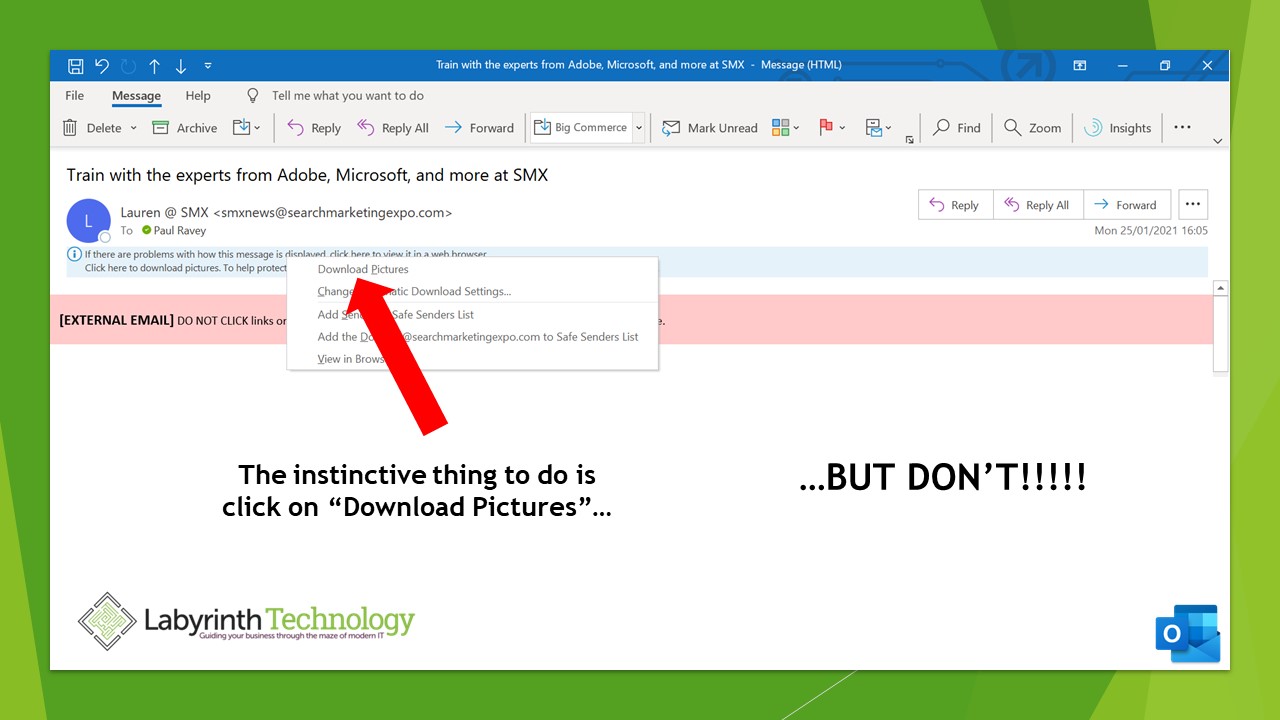
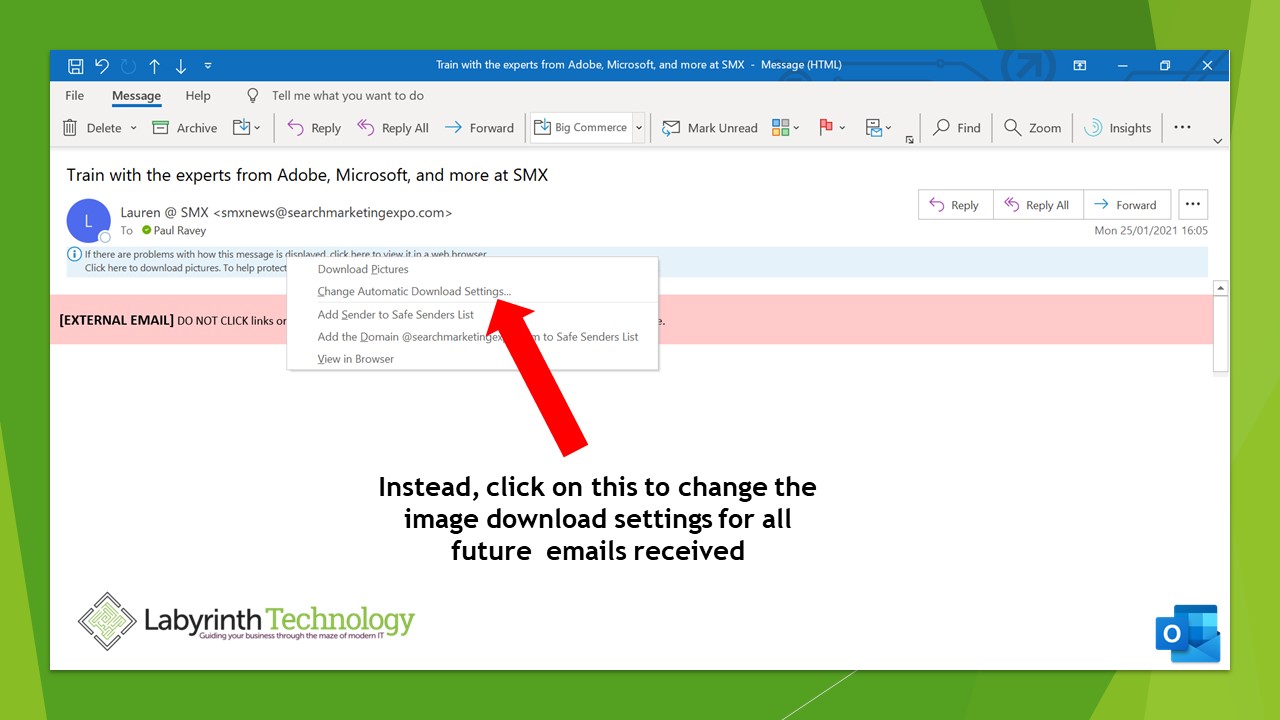
So why wouldn’t you set up your inbox to automatically download images? To be fair, there may be good reasons why not, but for the bulk of users this is merely a way of making your inbox a bit cleaner, and your working day that little less stressful. So how do you do it? Well, look at the line below “Download Pictures”, and click on here.
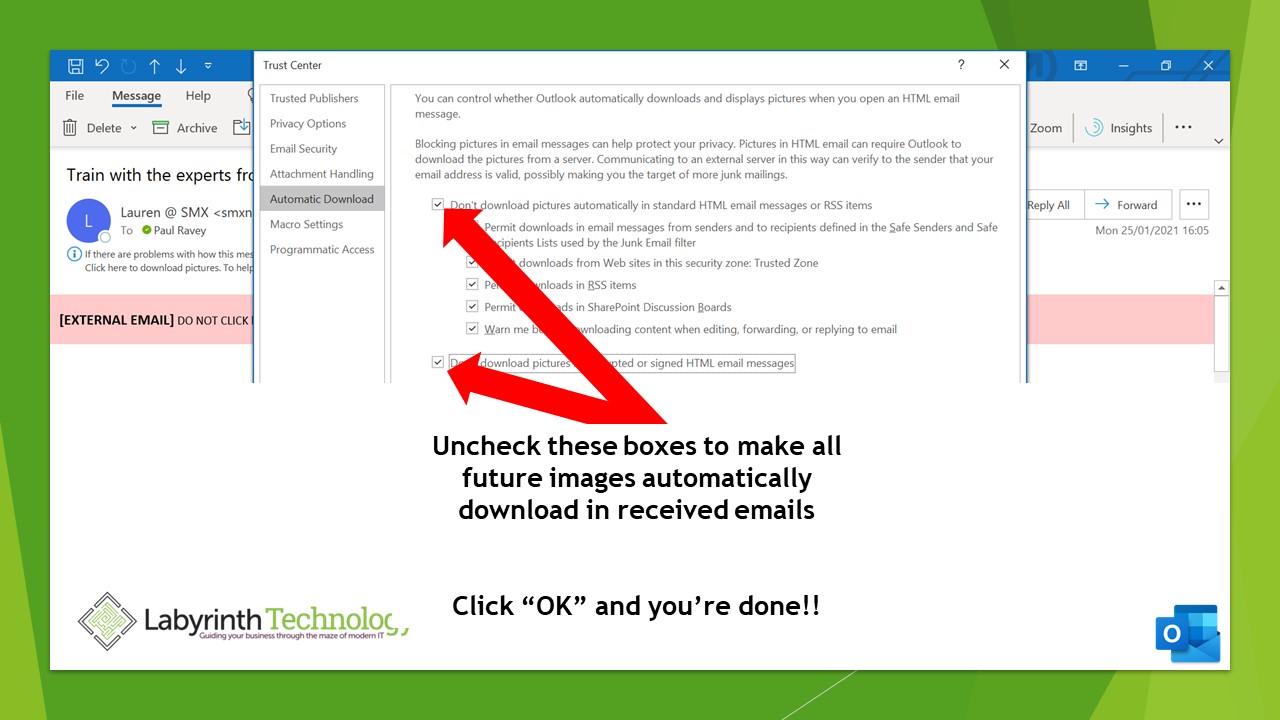
Once clicked, a dialogue box opens and all you need to do is uncheck the boxes indicated below. Hey presto! No more images to manually download!
If you want to download and keep a copy of this simple guide, please click here
How To Make Your Windows Computer Start Up FASTER!!
Remember when starting your computer used to take AGES? You could press the power button and make a coffee in the time it was ready to use! It’s a lot better now of course, but did you know it can be even FASTER? Here is a handy little guide from us about out how to speed up the start time of your Microsoft Windows computer
“Recall Message” warning!
Did you know that the ‘recall message’ function in Outlook rarely works as you would expect it to?
The recipient must be a member of your organisation and part of Exchange/ Microsoft 365 and also using Outlook.
It also won’t work if they have opened or moved the message. So please make sure you check the recipient list (don’t click “reply all” unless you mean to!) and content before you send an email!
If you’ve found this useful please follow us on LinkedIn or twitter and Subscribe to our Newsletter.
How to search in Outlook for emails older than 12 Months
HINTS AND TIPS! Some people may want to be able to search in Outlook for emails older than 12 Months. Do you want to know how to increase the time emails are synced to Outlook on the desktop from the Default 12 Months?
You’re On Mute!!!!
Do people keep saying they can’t hear you on Microsoft Teams? If you are using a headset with a laptop, the Teams app might still be using the built-in laptop Microphone. You can check and amend this by going to Settings > Devices. You can also carry out a test call to check that your audio is clear or preview your webcam.

We hear a lot about “Phishing” but what is it?
Phishing has become a very popular method for hackers to use to try to attack us because it is so easy to attempt. It is also, unfortunately, one of the easiest hacks to fall for.
One successful Phishing attack can provider a hacker with everything they need to access your personal or work accounts, including emails, bank details and more.
A Phishing attack is usually carried out over email, although there are variants (see definitions below) that use other methods. The goal will be to get you to hand over passwords, alter your bank details, make payment: basically, to trick you to do what the fraudster wants.
Phishing is also a way for hackers to deliver malware. They try to get you to visit a link, download a document or watch a video that will secretly install malicious software.
There are even “Long Con” phishing attacks that use fake social media accounts to entrap a victim over weeks or months.
How do I spot a phishing attack?
Many of the less professional phishing operators still make basic mistakes in their messages. So if you see an email message that is supposed to be from a reputable organisation (like your bank) with obvious spelling, grammar or punctuation errors then you should be very concerned.
Often, the attack will encourage you to click a link. Usually, if you hover over a link embedded in an email, the destination will be displayed. If the destination looks strange- don’t click!
In fact, that’s probably the simplest and most effective advice that we can give when it comes to links in emails- treat all of them as suspicious!
Another simple thing to look out for is the senders email address. It’s easy to change an email “Display Name” to anything you like. But the actual sending email address will often give you more information. So if it looks as if your boss has just sent you an email asking him to pay a bill but the sending email address is an unusual gmail account then beware!
These few paragraphs are really the “tip of the iceberg” on this subject. So if you need any help or advice on any aspect of IT security for your business, please do not hesitate to contact us. It’s not easy to put a figure on how much this sort of fraud costs businesses around the world every year but in the US alone, the FBI estimates the cost to be around $5bn.
Oh, and here are the definitions we promised!
Vishing: a phishing attack carried out by telephone.
Smishing: a phishing attack carried out by Social Media
Spear Phishing: a phishing attack that is targeted to an individual or group of individuals
Security Vulnerability Discovered in some ZyXEL Firewalls
A team of security researchers from the Dutch company EYE have found a serious security vulnerability in certain Zyxel firewalls.
If you have a Zyxel USG, ATP, VPN, ZyWALL or USG FLEX you should update the firmware on the device to the latest version immediately. Moreover, you may wish to consider replacing older devices.
You can find the full list of affected devices here and the original Zyxel advisory notice here.
Zyxel is a well-known brand of firewalls aimed at the small to mid-market. The use of firewalls VPNs has increased dramatically in recent months due to the explosion in home working so it is very important that they are kept secure.
We find that businesses who do not have efficient IT support in place often do not realise how important it is to update the firmware in hardware devices. Outdated firmware has often been shown to introduce security vulnerabilities.
At Labyrinth Technology we automatically check and update firmware for all our client devices at least every three months. Consequently, this ensures that they are protected by the latest advances in technology, functionality and security.
If you need help or advice with any aspect of IT support or security for your business, please do not hesitate to contact us.
Lightning Cable Problems?
An old problem that we still see from time to time is an Apple Lightning cable that will only work when it is plugged into the device a certain way. Most usually this problem affects charging, but it can affect data transfer as well.
There are a couple of ways to solve this problem: both involve simply cleaning the dirty contacts.
The “low tech” way is to use a pencil eraser. It takes a bit of patience and some hard work but usually after a few minutes of scrubbing, the dirt will come off and the cable will be as good as new.
If that doesn’t work (or if you don’t like the idea of scrubbing away with an eraser) you’ll need to switch up a gear. This requires some slightly more specialised equipment though- some contact cleaner and a fibre glass brush will do the trick in a few seconds.
Adobe Flash Player Reaches “End of Life”
Adobe Flash player, the browser plug-in that was originally released in 1996, has reached End of Life. (A plug-in is a small app that adds to the functionality of your internet browser).
The plug-in enhanced web pages with animation and interactivity in a way that had not been seen before. Much of what we take for granted on the modern web was brought about by the changes started by Flash player.
Back in 1996, by far the majority of internet users were still connecting by dial-up modems. Typically, these were achieving speeds many times slower than our broadband connections of today. Despite this, Flash Player’s technology allowed web designers to deliver content relatively quickly.
However, modern web technologies, have far superseded Flash player, and Adobe have announced that the product will be made end-of-life. No more security updates will be released for the software, which means having it installed now presents a significant security risk.
Adobe have provided instructions on their website for how to uninstall the software (on windows) here.
If you still have concerns about this or any other aspect of IT security for your business, please do not hesitate to contact us. Labyrinth Technology has been supporting and advising businesses in the London area for nearly 20 years. We can assure you of simple, friendly and honest advice!
Explainer; 4 Elements of Today’s IT for Business
On page 21 of this edition of the Southwark Chamber of Commerce magazine, Matthew Dunn, our Business Support Director, gives an “explainer” of 4 elements of today’s IT for business. Worth a read if you want to know more about cloud storage, unified communications, and more!!!
https://issuu.com/benham/docs/southwark_business_today_-_1761
Reasons to Auto-Archive Your Emails
A quick question for you….
[embeddoc url=”https://labyrinthit.com/wp-content/uploads/2021/01/Email-Archiving-1-1.pdf” download=”all” viewer=”browser”]