Loading

What do you know about Business Continuity and Disaster Recovery?

Are you doing enough?

The role of BCDR is to minimise the effects of outages and disruptions on business operations. BCDR practices enable an organisation to get back on its feet after problems occur, reduce the risk of data loss and reputational harm, and improve operations while decreasing the chance of emergencies.

In partnership with Datto, here is the essential guide to what you need to know about BCDR

Download

Windows 11: Everything you need to know about the latest Windows version

When everyone was sure that Windows 10 would be the final version of Windows, Microsoft came up with the biggest surprise for Windows users. Windows 11, or, as Microsoft calls it, “The next generation of Windows,” is coming soon, and the world is going gaga over it.

Windows 11 claims to provide a creative place to “think, express, and create in a natural way” and comes with some unprecedented changes.

If you are excited about this upcoming version, here is all you need to know about Windows 11.

What is New in Windows 11?

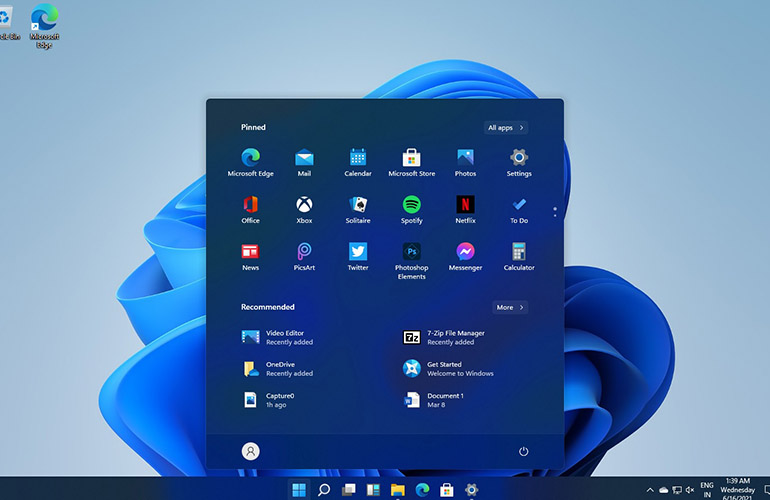
Windows 11 is coming with lots of revolutionary changes that aim to bring Windows users closer together than ever before. With a new Start menu and smarter UI (User Interface), Windows 11 offers you new ways to reach your favourite people, news, games, and content. In addition, the Windows classic Start menu and taskbar will be centered by default now, and they will replace the older tiles with a grid of app icons.

One notable shift in the latest windows will be the multitasking facility. It will offer you instant access to all your apps with its smart multitasking tools like Snap layouts, Desktops, and a more innovative redocking system.

Windows 11 will also make it super convenient to connect with your loved ones and make sharing files, text, and videos with friends, family more effortless than ever. In addition, with Microsoft Teams, you will be able to instantly connect with people and colleagues right from the desktop and chat or call with them for free.

Also, Windows 11 will let you select your favourite programs in no time with its smart widgets and Microsoft Edge tools. The new Microsoft store will be a huge surprise and will have some of the latest apps and programs to make everything easier for you.

Windows 11 will also bring good news for gamers and show up with unmatched graphic capabilities and a whole new gaming experience with Auto HDR, Direct Storage, and DirectX 12 Ultimate features. Moreover, it will offer you access to more than 100 high-quality games with the latest Xbox Game Pass.

Lastly, there will be a smart upgrade for touchscreen users with new gestures and features.

Release Date, Price, and Requirements

Microsoft hasn’t revealed the exact release date yet, but it will be on your devices before the end of 2021. It will be coming as a “free upgrade” for all the Windows 10 users and will need very similar system requirements. Also, this upgrade will be optional for all users, and they can stay on Windows 10 if they want to do so until its official farewell in 2025.

Here are the minimum system requirements that you will need to upgrade your Windows 10 to Windows 11.

  • A modern 1Ghz 64-bit dual-core processor
  • 4GB RAM
  • 64GB drive
  • 9-inch display
  • 1366×768 resolution
  • UEFI, Secure Boot & TPM 2.0 compatible
  • DirectX 12 compatible graphics / WWDM 2.x

Windows 11 is not designed for a 32-bit processor this time, but all the 32-bit apps should work perfectly fine in the new windows. Importantly though, Microsoft is stipulating new CPU requirements, i.e., CPU older than Intel 8th-generation won’t be able to run Windows 11 officially.

Similarly, Windows 11 will require a display size of at least 9-inches. Hence, it won’t be available on smartphones or mini 8-inch tablets.

So, if you are a Windows user, it is right to feel excited and expect a whole new experience in Windows this year, just make sure you are set up and ready for it.

Three Things To Consider When Purchasing A New Business Computer

If you’ve reached the point where your laptop or desktop are in danger of being thrown out of the window in a fit of anger, it’s possibly time to consider upgrading to a newer model; not all problems can be fixed with proactive support, sometimes it’s just time to move on!

In general we find that business computers have a useful life of three to five years.  After that software and operating systems may have moved on to the point where they weigh too heavily on the processing power of your machine.  Also, it’s sad but an undeniable fact, that years of software installs, updates and uninstalls do affect performance, something that can really only be resolved by starting afresh.

I would say that there are three main things to consider when purchasing a new computer for your business (and remember, this applies to laptops and desktops); Operating System, Processor and Quality.

Now, at this point, some people are jumping up and down shouting “RAM” and “DRIVE”.  We’ll take it as read that any decent business machine will have a minimum of 256GB SSD (Solid State Drive, the advancement of the old mechanical Hard Disk Drive) and a minimum of 16GB RAM (System Memory).  I would suggest that these are the baselines for a business class machine, if you can afford more, great, but at least at this level you will get good performance from your investment.

Operating System

I’m assuming that we’re all on the same page and that we’re discussing Windows machines at this point.  Apple devices are amazing.  They are built well, tested rigorously and have an undeniable advantage in the creative sectors.  But the simple fact of the matter is that Apple has never achieved much more than a 20% penetration in the business computer market.  The business world runs on Microsoft Windows.

My point when it comes to Operating Systems is that for a business class device you must have Windows 10 PRO.  Pro comes with a number of features that are not present in the cheaper Home version.  For example, drive encryption (an essential part of any competent data security policy) only comes with Windows 10 Pro. You cannot join a Windows Home PC to a domain (local or cloud) which is pretty much a basic necessity if you’re in business.  And there are other local security settings that only come with the enhanced version.

I should also mention that if you have a computer now that is currently running any other version of Windows than Windows 10 upgrading should pretty much become your number one priority in life!  Older versions of operating systems become unsupported and any security vulnerabilities will not be addressed.

Processor

The second major decision that you have when thinking about a new Business computer is what processor you want.

Intel undoubtedly has the dominant position here.  Their 11th Generation processors launched earlier this year delivering the highest performance and comprehensive hardware based security.  They claim to have “Up to 23% faster productivity than the competition when using apps like Office 365 and the best business collaboration experience, enabling more than 50% faster office productivity compared to the competition while on a video conference call.”

You can decide how much you want to believe the marketing spiel, but they are undoubtedly great chips!

In terms of buying options, the most recent or previous generation of chip will be the way to go.  (As at time of writing in Summer 2021, 11th or 10th Generation).

Look also at the name of the chip.  You want at least an i5 but, if you can afford it, a lot of businesses use i7 processors.  The most powerful (i9) will probably only be for those who have to have the newest car as well!

Quality

I’m not going to say “You must buy X brand” here – quite the opposite in fact, we’ve seen some household names sell computers of appalling quality over the years.

My point is that you really do get what you pay for in IT (just like everything in life!) and if you’re considering a new computer for your business then it’s worth paying a little extra to make sure that the components used in its construction are well sourced.

Things can change on this front quite quickly.  One year Brand X might be in the ascendance the next it might be Brand Y.  If you are not in the industry, it’s well worth talking to your IT Service provider to find out their expert recommendation.  They are the ones dealing with hardware like this day in and day out and they will be able to tell you first hand about the experiences they have had with certain brand of computer.

So there we have it. In a nutshell:

Windows 10 Pro, Intel Core i5 or greater (latest generations), decent quality brand with a minimum 256GB SSD and 16GB RAM.

That should see you through for the next three to five years.

And do remember to take the advice given to you by your expert advisers; they should be operating on the principle of “Best Advice” and giving you just that!

All You Need to Know About Microsoft Teams Guest Access

With the rise in remote collaboration, more and more workers are using Microsoft Teams. As most companies have Microsoft 365, switching to Teams as a single place to meet with your team scattered across many locations makes sense.

But what would you do if people you regularly collaborate with are not a part of your organisation? Many of us regularly collaborate with consultants, partners, vendors, and other individuals associated with our companies, so wouldn’t it be convenient to have one platform to hold video calls, exchange chat messages and share documents with your partners, all the while having control over your company’s data?

With Microsoft Teams Guest Access, you can provide access to teams, files in channels, chats, and applications to people outside your company, while having complete control over your company’s data.

What is Guest Access?

A guest is someone who isn’t a part of the company, and do not have an account with your company. For instance, they may be partners, consultants, vendors, or suppliers.

Anyone who is not a part of your company can be added as a guest in Teams. This means that anyone with a business account, including an Azure Active Directory account, or a consumer email account (including outlook.com and gmail.com) can be a guest in Teams, with access to the channels and experiences. Your guest can download the Teams desktop app or join the call from the browser. They don’t need to have Teams or Microsoft 365 to be part of a meeting as a temporary guest. Once the meeting ends, their access to Teams does, too.

Once access is enabled, and settings are configured, only team owners can add guests to the “teams” they have created, but administrators will control on a global basis exactly what guests will be allowed to do and given access to, when it comes to messaging, calling, and meeting.

Guests will benefit from additional access to many functions in the channels and teams you have created, but will not have the ability to:

  • Upload files to “1 to 1” chats
  • Access your OneDrive or SharePoint
  • Browse for a team
  • Create or revise a team
  • Invite other guests

Adding a Guest to Your Team

Once the ability to add guests is granted to the team owner, they can easily add guests.

  1. Open your Teams application.
  2. Choose the ‘Teams’ option from the left-hand menu.
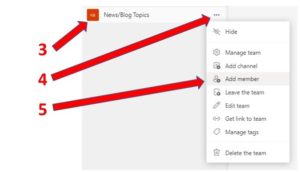
  3. Choose the particular team you want your external guest to join.
  4. Click the 3 dots next to the team name.
  5. Select the ‘Add Member’ option.
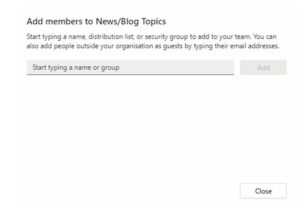
  6. Enter the guest’s email address and then select ‘Add’.
  7. You can set your guest permissions in Team >> More Options >> Manage Team.

Your guests can now interact with other team members in any of the assigned channels.

The Bottom Line

While some businesses may consider it safer to stop external sharing completely, this can actually be a case of “cutting off your nose to spite your face”. Microsoft Teams is fast becoming the “go to” tool regarding the enhancement and enablement of office collaboration and productivity, so it is likely that failing to deliver a solution to the virtual guest access issue may lead to employees turning to other non-approved or controlled solutions to share content with external members.

However, this doesn’t mean you should simply give the Guest Access without considering your first considering your firms IT security. You should consult your in-house IT resource or a trusted IT Managed Service Provider about how to deploy Guest Access in Teams, what privileges you should allow, and who should be responsible for managing the process.

Solve the Puzzle of Voice and Telephony With Our Buyers Checklist

It can be confusing when choosing voice and telephony systems for your business, so to make your choice easier and clearer to understand we have partnered with 8×8 to create this Buyers Checklist for you to use. If you are in the market for a new system, or maybe you are searching for your first cloud based voice and telephony service, download the document and tick the boxes to see how the other vendors compare to 8×8. Then contact Labyrinth Technology today on 020 3790 7500 to discuss how you can move to a better cloud telephony system.

Download The Buyers Guide Here

9 Cyber Security tips that every business should follow

The move to remote working has created an open-season for cybercriminals. No business, big or small, is safe. Including yours! SME’s in particular seem to have a target on their backs, so strengthening your company’s security posture is essential right now. Here are 9 Cyber Security tips that every business should follow. Contact us for more information about what you can do to protect your business.

Download Here

Security Solutions To Protect Your Business Against The Microsoft Exchange Server Hack

In an issue that continues to rumble on, Microsoft have released a critical emergency patch to fix a series of vulnerabilities that attackers could exploit to compromise your Exchange server and steal critical information. These flaws pose a severe risk to businesses around the world, as threat actors managed to exploit them before Microsoft was aware of the issue, and now the rest of the cyber criminal world is following suit. Indeed, as we posted recently, even Acer have found themselves at risk, having been victim to a $50 million ransomware attack.

WatchGuard

To protect your business, you, or your IT support provider, should have patched all on-premises Exchange servers. But in the meantime, if for whatever reason you have not, or cannot complete this, Labyrinth Technology and WatchGuard can help.

WatchGuard security solutions have been tested and can defend against the Hafnium exploit in a variety of ways:

Panda Adaptive Defense 360
Features detections for the PowerShell payloads and many of the webshells involved in this attack. The layered protection model of Adaptive Defense 360 will protect endpoints from being compromised by this attack. Used in conjunction with the Patch Management module, you will be able to defend your network against the Hafnium exploit and efficiently patch your endpoints as well.

IPS
Firebox’s Intrusion Prevention Service (IPS) has signatures that detect and block the first stage in the attack’s exploit chain.

Gateway AntiVirus
Multiple signatures to detect and block the webshells used in the attack.

APT Blocker
APT Blocker successfully detects the malicious PowerShell backdoors used in this attack.

Firebox Access Portal and VPN
The first attack stage for this threat requires an Exchange server exposed to the Internet. You can mitigate this stage of the attack by protecting the Exchange server behind the Firebox’s Access Portal on supported appliances.

Labyrinth Technology is a WatchGuard Gold Partner, so if you have any questions on how we can help protect you against this ongoing issue, please contact us for further information.

WG Gold

Copy from one device and Paste to another

We all take the copy and paste functionality in Windows 10 for granted. Whether it is “right click and copy” or “CTL+C” the need to replicate data (text, table, image etc) has long been part of the daily process for anyone that uses a computer. 

But what if you use more than one device? Did you know that you can copy an item from one device and then paste it to another? Here’s how. 

First, make sure that you are signed into your Windows or Microsoft account. This only works if the item that has been copied to the clipboard can be synced across your devices by way of the Cloud, and this has to be done using your cloud account. 

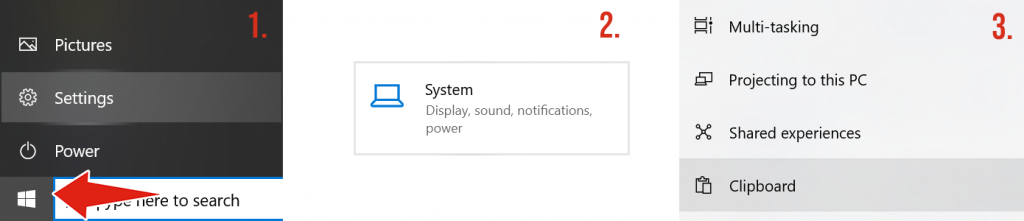
Once signed in, go to Start > Settings > System. Once you are in there scroll down the left-hand menu until you see Clipboard. 

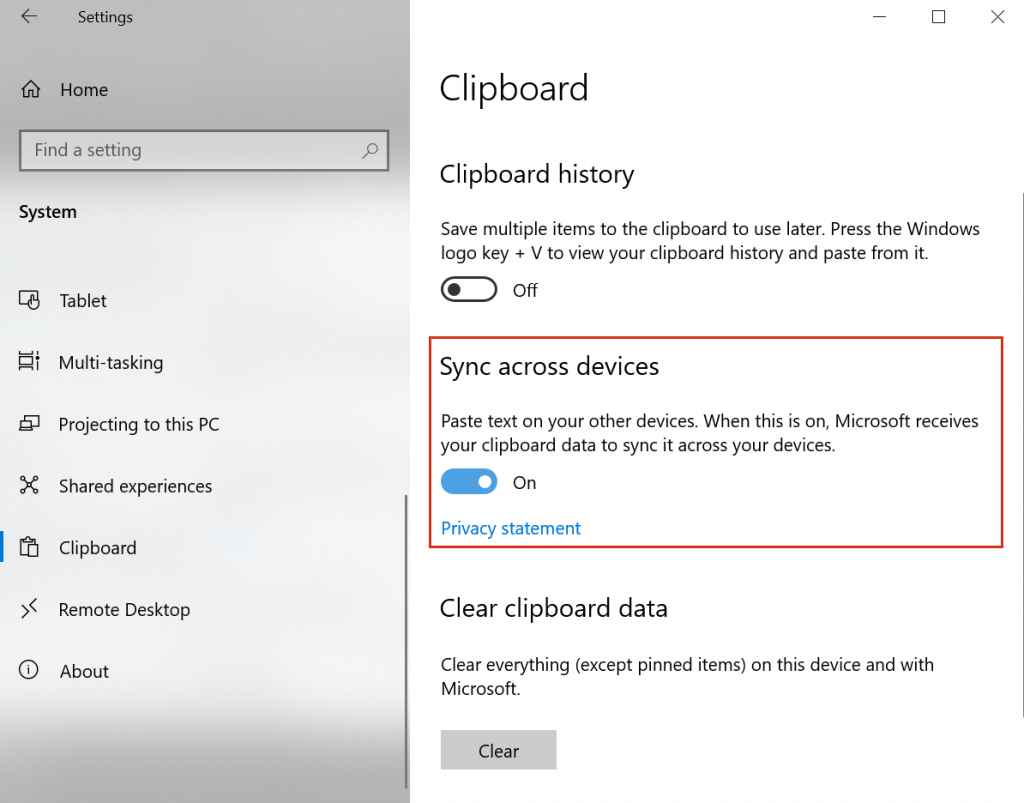
Clicking on Clipboard opens this setting where you will find three options: 

  1. Clipboard history, which you can switch on and then save multiple items to the clipboard so you can use them again later (but be careful, as too much in the clipboard might possibly affect the memory and performance of your device, so make note of point 3).
  2. Sync across devices, which is what you need to enable. Once done you can copy data from one device and paste it on another.
  3. Clear clipboard data, which is very useful to remember if you are going to switch on the above functionality. This is a manual clear out of everything in your clipboard. 

Hopefully this will be of use, but as always, take care whenever you make any changes to your settings. 

What To Look For in a UCaaS Provider

Do you know what UCaaS is?

Using a full mix of mobile and desk based voice calling, video chat, video conferencing, file sharing and more has become commonplace and accepted. In today’s world, if your business hasn’t got on board with this technology, it could put you at a disadvantage. But it can be daunting! There are lots of solutions out there; different brands, different types, different features, different qualities. Only a good UCaaS (Unified Communications as a Service) provider brings all of these together into a single process, tailored to you business needs, but finding that provider isn’t easy.

Comparing their features, benefits and support offerings really matters when deciding if the provider is the right fit for your business and employees, so to help, we have put together a list of 10 things to look for when choosing a UCaaS provider. Download the document below, and for more information on how we can help with your journey to UCaaS, please contact us today.

Download Here

What is SharePoint, and Why Do You Need It?

SharePoint is web-based document management and collaboration platform. It uses workflow applications to enable teams to work together. It is very flexible, and is mainly used to store documents, and communicate information across organizations. Basically, SharePoint allows users to create an intranet for their organisation, from which sub-sites can be created for specific teams, projects, departments, subject matter etc. Because this intranet is a controlled, centralised and secure space, all users can access, share, and edit documents (depending on permissions).

From an organisational standpoint, SharePoint gives the company using the platform the ability to control access to information, automate workflow processes across business units, and empower collaboration and decision making within the various teams. And for those organisations using the Cloud version of SharePoint (SharePoint Online), many integration capabilities with other Cloud based applications are available.

In spite of the many benefits that SharePoint has to offer, it remains something of a “mystery” to many organisations, so Labyrinth Technology offer 12 benefits that SharePoint can bring to your business. Feel free to download the document, and for further information contact us today.

Download Here

Microsoft Exchange Server Hack Is Worse Than Initially Thought 

  1. What is the Microsoft Exchange Server Hack? 
  2. How do I know if I’ve been affected by the Microsoft Exchange Server Hack? 
  3. What can I do if I am affected by the Microsoft Exchange Server Hack? 

Last week Microsoft announced that a hacker group known as Hafnium had conducted a “limited and targeted” attack against on-premises Microsoft Exchange servers. To all intents and purposes Microsoft seemed to be indicating that the situation was under control, but now there are reports of thousands of servers having been compromisedSo, for many businesses still using on-premise Exchange Servers the above three questions may well be very important right now, and in particular questions 2 and 3. 

In regards to question 2, identifying if you have been affected by the Microsoft Server hack is something that an expert IT support provider needs to do, as Microsoft has published a “script”, available on GitHub that should be able to conduct a check of your Exchange server’s security status (i.e.: are there any indicators of the server having been compromised?). 

The short answer to question 3 is “get professional help”. If your business is still using an on-premise Microsoft Exchange Server your IT service provider should have ensured that it has been patched accordingly (using security updates available from Microsoft). If they haven’t you need to act now, by contacting your IT service provider, or an IT support company that you can trust to help you. 

Labyrinth Technology is available on 020 3790 7500 if you need help or advice on what you need to do, or if you are considering moving to Exchange Online, which has not been affected by the Microsoft Exchange Server Hack. 


Stop Background Apps From Running, and Save Your Battery 

In the “new normal”, with a vast number of people working from home, some of us are lucky enough to have a desk, while others use the dining room table, breakfast bar or similar. Wherever you may be, having a power point nearby will have been a consideration for you. But spring is approaching, and the time may soon be upon us when we can look to sit outside and do a bit of work. So suddenly battery life may well become an issue. 

Taking care of the battery in your mobile phone has long been something that we all take seriously. Most of us will have felt the sudden shock at seeing the “battery life at 10%” message appearing during a video call, or even worse, knowing your phone is running out of power and not being able to do anything about it, hoping you will just be able to finish off before the phone dies. So, we actively do things to maximise the life of our phone battery. 

But what about your laptop? 

The latest laptops all come with promises of up to 8, 9 or 10 hours, or even more! But that is usually the “best case scenario”. The harder you work, the harder your laptop works, so that 9 hours becomes a more realistic 4 hours, or maybe even less! So shouldn’t you do whatever you can to maximise the life of your laptop battery also? 

One simple way to do this is to stop apps running in the background, just as you would do on your phone. Any apps that are continually running in the background on your laptop are doing many things, even though you didn’t even realise they were active! They can receive data downloads, updated informationeven send notifications, all while you aren’t using them. In some cases, this can be a useful thing, but it can also drain your battery (and even your data if you’re connecting via a mobile hotspot in the back garden!). 

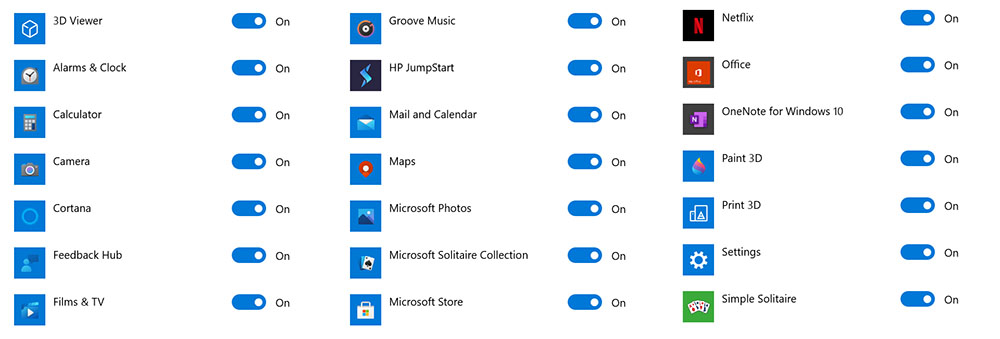
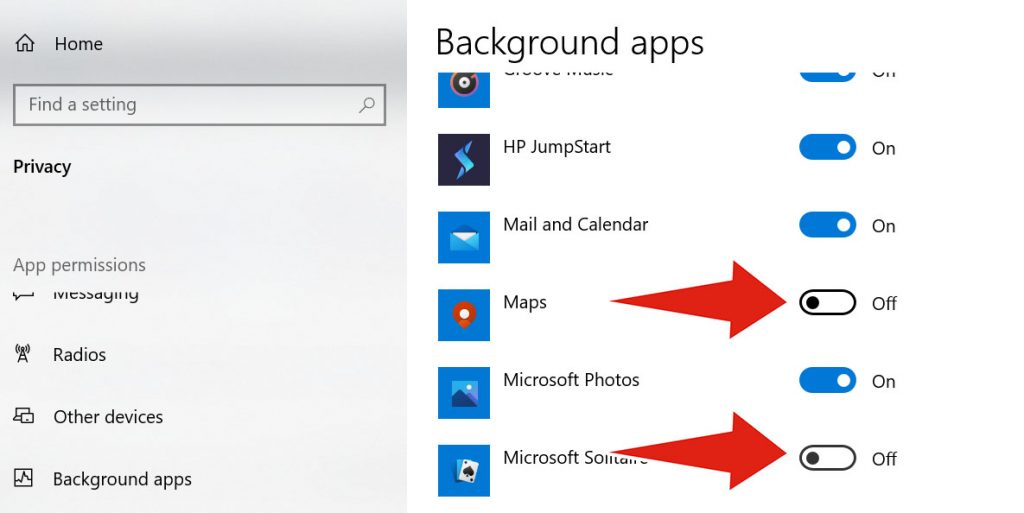
As an example, these are the apps that could be running in the background on a standard Windows 10 laptop. Ask yourself, do you really need Xbox Console Companion running in the background on your laptop? 

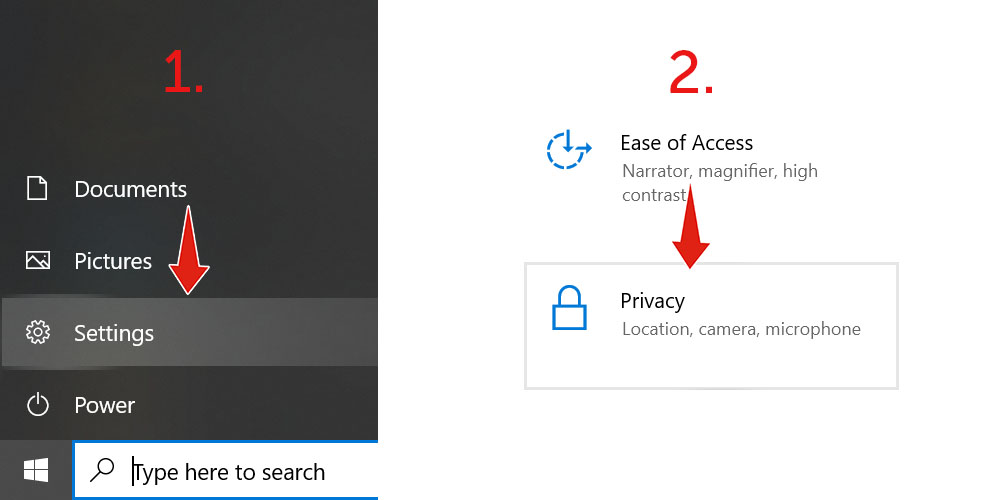
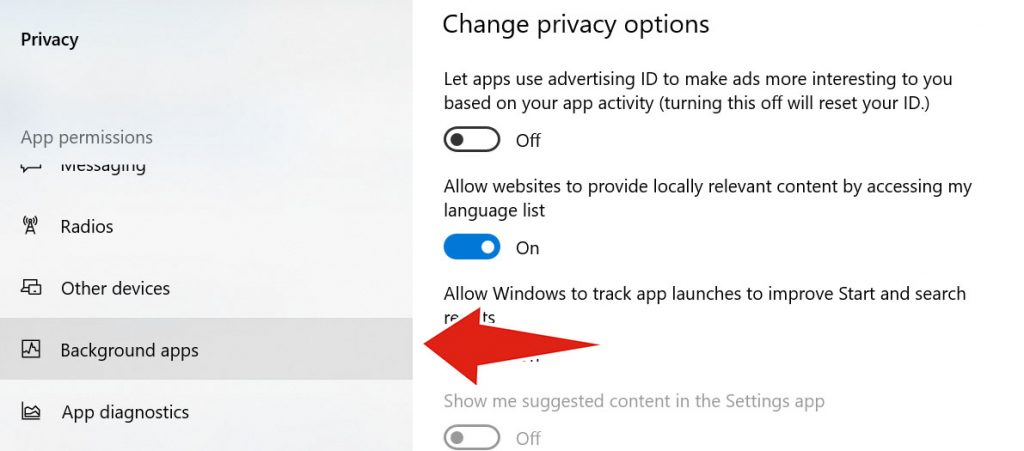
Controlling which apps run in the background is surprisingly easy. Click on the Start button and then click the settings “cog wheel”. In Settings click on Privacy. 

On the left hand side of the screen is a list of App permissions. Scroll until you see Background apps and click this. 

You now have the option to stop all apps from running in the background by toggling Let apps run in the background to Off. There is no harm in doing this, as all it means is that when any of these apps load from new there might be a slight delay if some data needs to be updated. Or, you can choose which apps to run in the background individually by going down the list on the same page. 

How to Display File Extensions in Windows 10 File Explorer Automatically

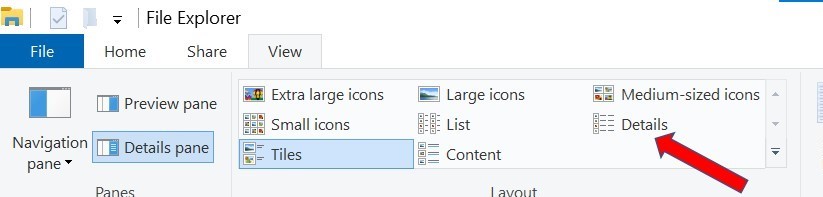
Did you know that by default Microsoft hides file extensions in File Explorer? You probably didn’t, and like most people just click on details to display them. That’s easy, yes? But it can get a little bit annoying when you have to do it EVERY TIME you open File Explorer! And not doing it can make by a real niggle for those people who need to look for specific types of files, like JPEGs and JPGs.

pane

So wouldn’t it be easier to just have the extensions displayed by default? Here is how you do that:

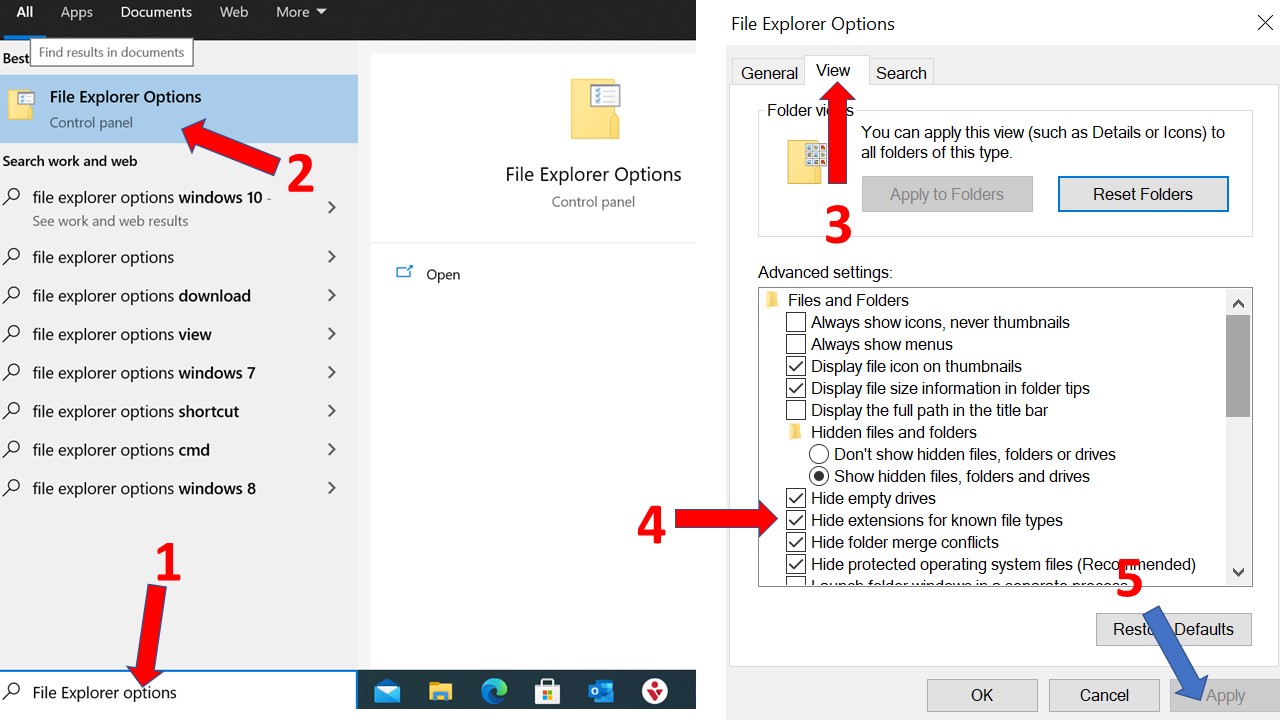
1. In the Search bar at the bottom of the screen (next to the Start button) type in File Explorer Options.

2. In the results will be the option in the Control panel. Locate this and click it. (There are actually several different ways to get to this point, but this seems to be the quickest and most straightforward.)

3. In the window that pops up, click the View tab.

4. Uncheck the box that says Hide extensions for known file types.

5. Click Apply, and OK. You should now be able to see file extensions for all files in the File Explorer by default as soon as the program loads.

Instructions

How To Take A Screenshot Of Just Part Of The Screen 

We all know how to take a screenshot, yes? Actually, there are at least 8 different ways to do this, with most people using Ctrl + Print Screen or even just the Print Screen button on its own. But that takes a screenshot the whole active screen, which then needs to be cropped in some program or other.

But did you know that it is very easy to just select the portion of the screen you want to take a screenshot of? 

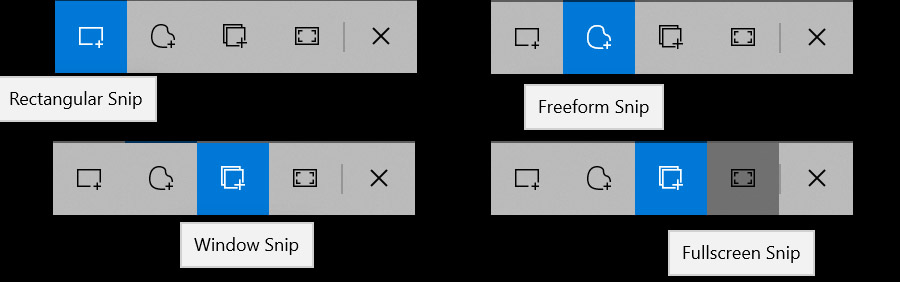
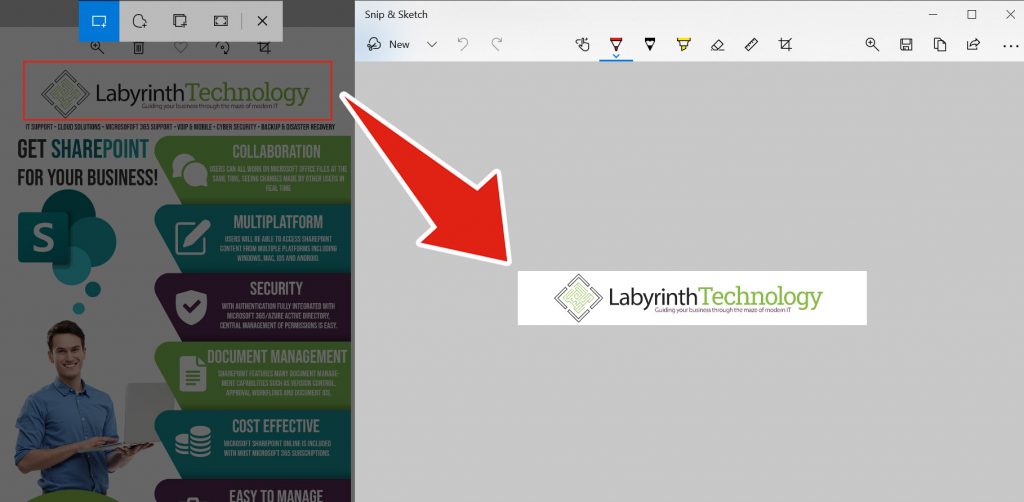
Simply press Windows + Shift + S, all at the same time and the Snip & Sketch tool will open up. You have 4 options here: 

  1. A simple 4-sided box selection 
  2. A freeform (or freestyle) “drawing” option 
  3. A “windows snip” option, where you can select just 1 of your active monitors if you are using more than one 
  4. A “fullscreen snip”, which takes a screenshot of the entire open desktop across all monitors (although of course simply pressing the Print Screen button does this as well) 

Options 1 and 2 are obviously the most useful, with option 1 enabling you to screen shot entire blocks of text, pictures, pop up boxes and so much more. 

Try it now. Windows + Shift + S. You will be amazed how useful it is! 

20% of wfh staff use work passwords for personal shopping & create security risks

According to a new report from Ivanti 20% of UK remote workers admit to using work emails and passwords for personal on-line activity. Making sure your staff are cyber-aware is crucial, and Cyber-Assure from Labyrinth Technology provides the training to do this. Also it provides the reporting tools needed to tell you if these email accounts have been compromised, and also what data belonging to your business is out in the public domain (via the Dark Web) and which breach they were found in. Contact us today to find out more.

How To Set Up Additional Monitors With A Laptop

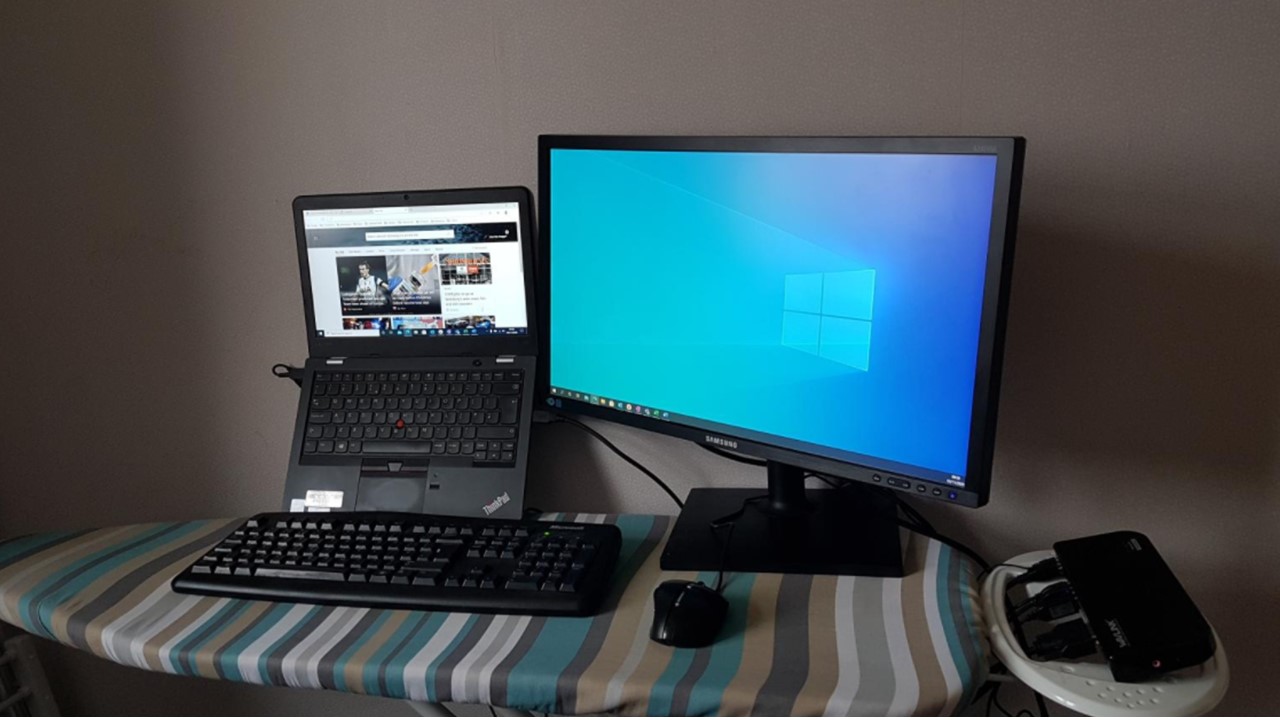
Working from home? On a desk? Maybe the dining room table? Or even an ironing board??  

Unless you have a permanent workstation set up in your home, at some point you will probably have to take everything apart and then put it back together again. And as you don’t have an IT team at home it’s up to you to get it right. 

If you are lucky enough to be working with additional monitors plugging these in to your laptop, either using a docking station or cable should be relatively straightforward, and if you are simply re-assembling your workstation the monitors will hopefully go back to their previous settings. But what if they don’t? Or what if this is a first-time setup? That’s where the problems might start! 

Fear not, just follow our simple guide on how to set up additional monitors with a laptop in Windows 10. 

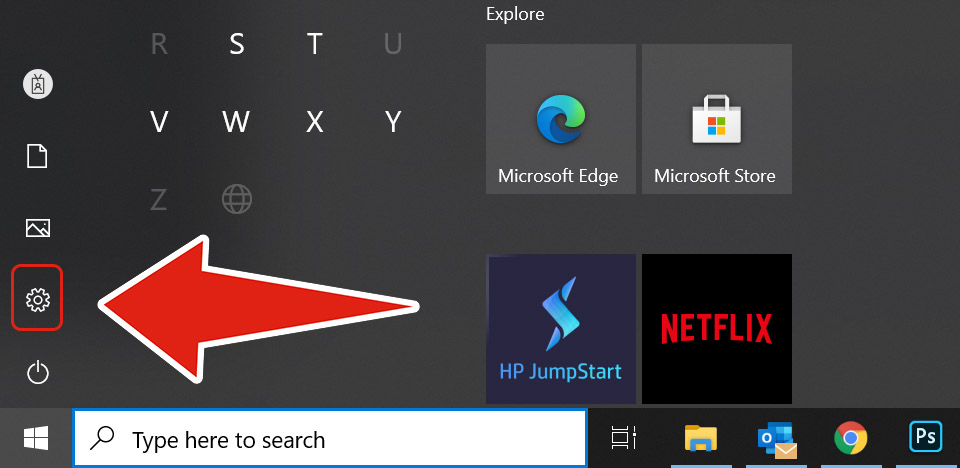
Firstly, click the Windows icon to open your Start menu, and select the cog wheel button to open the settings menu. 

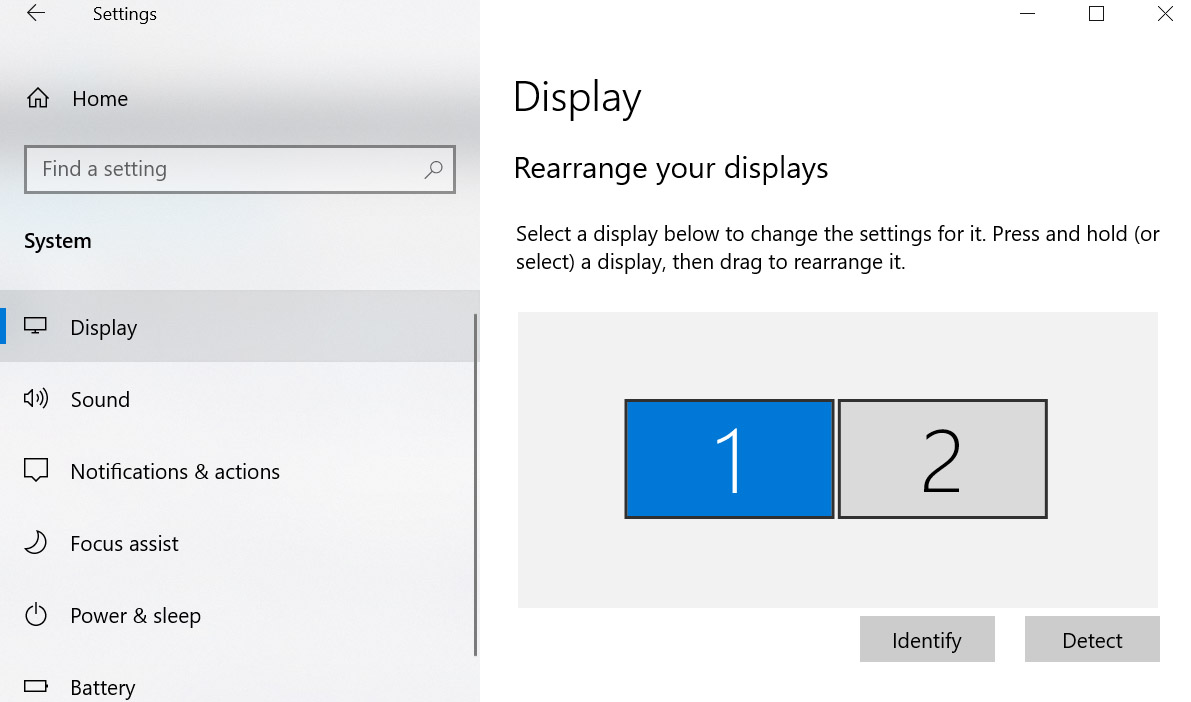
From the Windows Settings menu, click on Systemand the Display menu should automatically be open for you. If not, search for Display in the left hand menu. 

Making sure that your additional monitors are correctly connected and (if necessary) powered up, click on Detect (to make sure your laptop is aware of all attached monitors), followed by Identify and a number will briefly appear on each of your monitors (possibly including your laptop).  

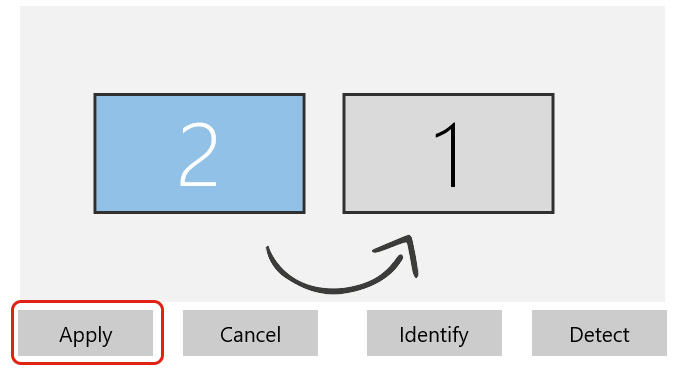
Once the additional screens have been detected you ideally want them to operate from left to right, and you should re-arrange them in the settings screen to match their actual position on your workstation. So if the left hand monitor is actually “2”, and the right hand monitor is “1”, click and hold on one of the monitors in Display Settings and drag it (left or right) to where you want it to be. When you are happy, click Apply. 

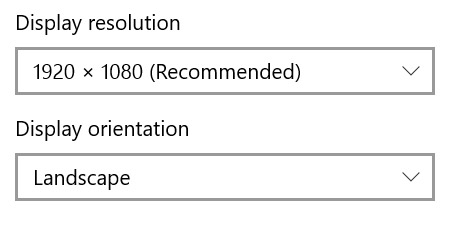
Select a screen resolution that works best for you. Usually a setting that is Recommended by Windows as this is based on the display’s hardware. Also ensure your Display Orientation is set to Landscape. 

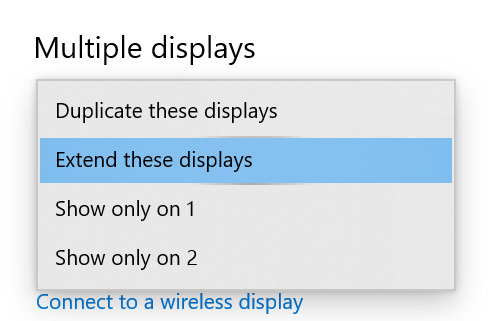
Finally, and possibly most importantly, check the settings in the Multiple displays section. The first time any new monitors are plugged in these additional screens are set to Duplicate these displays, which basically means they act as a mirror of your laptop screen across the additional monitors. Assuming your aim is to have 2 (or 3, including your laptop) monitors all acting as a single desktop display, select Extend these displays from the drop-down menu, which allows you to use them as additional monitors instead. If you are going to keep the laptop screen as part of a 3 monitor desktop, we recommend it be set up in position 1 or 3, whichever suits your work setup best. 

But if you are using a laptop and 2 additional monitors and do not want the laptop screen switched on, you can un-check the box labelled Make this my main display, and this switches off the laptop screen, leaving you with the additional monitors only as your display. Obviously if you only attach 1 additional monitor you cannot un-check this box. 

We Are Now A WatchGuard Gold Partner!

Today we are extremely proud to have been certified as a WatchGuard Gold Partner. There were several milestones which both Labyrinth Technology and more importantly our staff individually had to achieve in order for us to reach this level of partnership, and is a testament to the level of our service that can be expected from businesses looking for the highest standards of network security.

Commenting on what this means, both for Labyrinth Technology and our clients, our Business Support Director, Matt Dunn explains:

Matt Dunn

“Being a WatchGuard Gold Partner is a recognition of our many years of experience and expertise in their security product portfolio. Achieving Gold Partner status is a significant milestone for our business and was a company wide effort. Now that we are a WatchGuard Gold Partner we will be able to collaborate much more closely with WatchGuard in a number of areas.”

“Our new partnership status gives our clients access to very competitive pricing and gives them reassurance that we have the expertise required to meet their security requirements with products from an industry leading security vendor.”

Being a WatchGuard Gold Partner will allow us to enhance the products, services and support we offer in respect of one of the leading manufacturers of network security equipment and cyber security tools. If the security of your computer network is important to you, contact us now for a free, honest and expert consultation.

WatchGuard Gold Logo

Adobe flash player may not uninstall automatically: check now!

In early January we wrote about the demise of Adobe Flash Player and how it had reached end of life. Indeed Adobe themselves made a change so that it wouldn’t play any content after January 12th this year. So it effectively became an un-used, un-supported and un-secure piece of software on your computer, which Microsoft have clearly realised. An update to Windows last year (KB4577586 for those of you that worry about these things) made un-installing Flash Player optional, but now Microsoft are re-running this update automatically to actively remove Flash Player.

However...

This update will not work on Flash Player installations that were completed using the Adobe standalone installer. So it is important that you check periodically to make sure that Flash Player does get un-installed. If not, you will have software that could pose a security threat to your device. If you need to uninstall a standalone version of Flash, click here to see the instructions listed on Adobe’s website.

File Emails Automatically In Outlook; How To Create A Rule 

How many emails to you get each day? Too many we hear you shout! And we would wager then several of them are merely updates, information emails about “company performance yesterday” and so on. The sort of email you don’t necessarily need to read immediately but would like to have on file just in case. You try to file them every day but eventually they just clutter up your already bulging inbox. 

Well, did you know you can automatically file these emails without them even going into your inbox? Here’s how. 

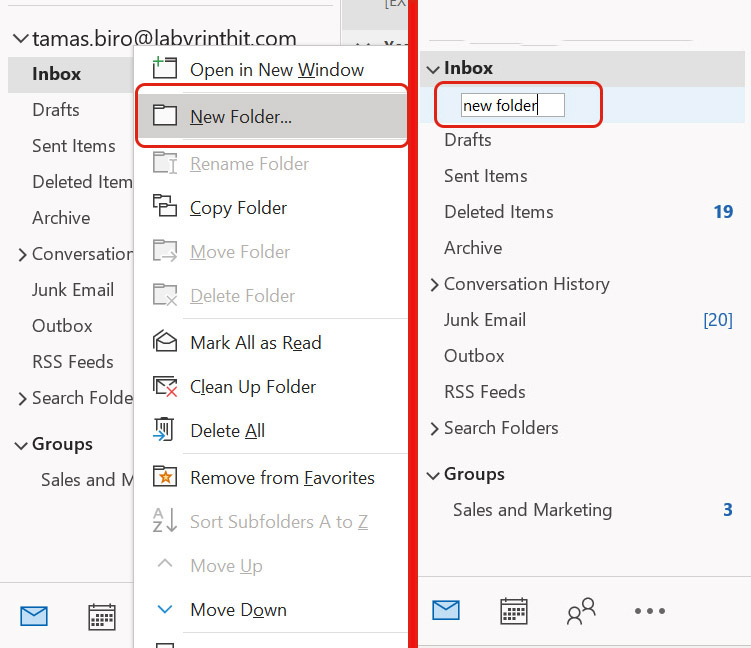
Within Outlook, on the left-hand panel right click your Inbox and select New Folder. Type the name of the folder you want the emails to be moved into, then press the Enter key. If you already have a file ready to receive these emails, ignore this step. 

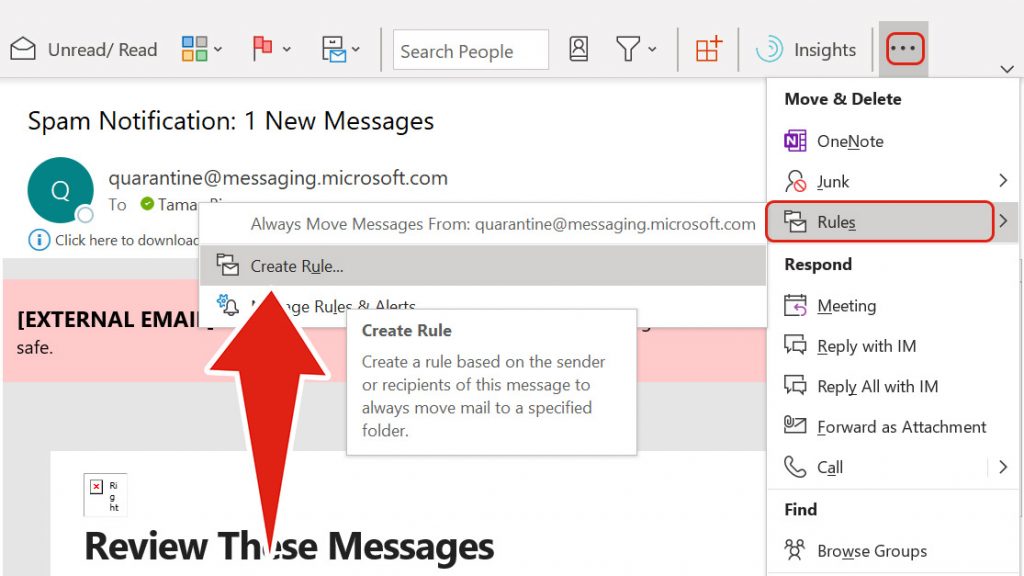
There is a SIMPLE way and an ADVANCED way to do this, and today we are dealing with the EASY way onlySo, from wherever it is in Outlook find the latest email in the series you want to file automatically (like the daily update email mentioned above) and click on it. No need to open it though. Now make sure the Home tab is selected and locate the 3 dots at right end of the menu bar. Click this and then click or hover on Rules. pop-up window will appear, and from this box select Create Rule. 

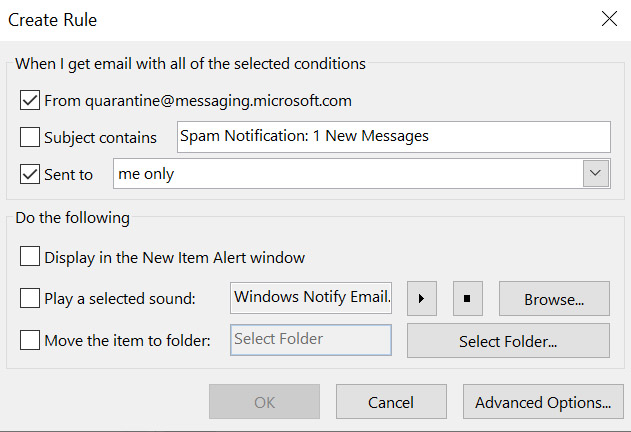
You will now see a pop-up box with options for you to select regarding which emails you want to file automatically: 

  1. Who the email was sent from 
  2. What the subject contains 
  3. Who the email was sent to 

You will also see in this box options regarding what you want to happen to these emails: 

  1. Whether it is to be automatically displayed in a New Item Alert window 
  2. Whether you want a specific sound played to notify you these emails have arrived (different to the normal “new email” sound) 
  3. Whether you want the emails filed automatically 

Remembering that we are following the EASY method for the purposes of moving a regular emailso you should find that the From and Subject fields will be pre-completed, so all you need to do is check theseHowever, be careful, because if the subject changes because it contains a date for instance, you would need to remove the date part from the Subject contains box (Daily Digest 17/02/21 becomes merely Daily Digest). 

Clicking the arrow in the Sent to box allows you to stipulate whether the emails to be automatically filed are those sent to you only, one of the other recipients, or (assuming we are doing this for regular company emails) the distribution list itself (“Management Team, All Staff and so on). 

Once you are happy with the “When I get email with all of the selected conditions boxes, it is time to look at the last 3 boxes in the Do the following section. 

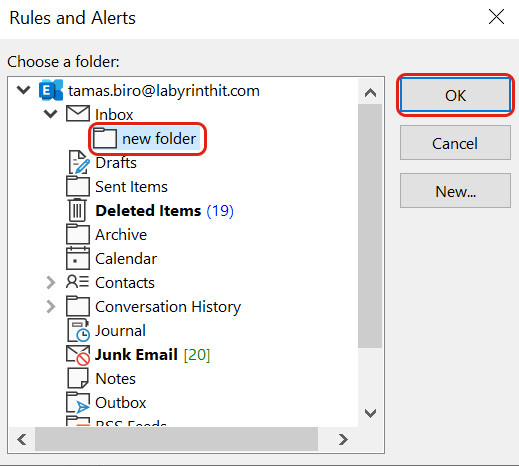
Because we are only concerned today with moving emails automatically, ignore the first 2 boxes. Go to, and check the box called Move the item to folder, and then select the destination folder from the list presented to you in the pop-up box. 

And that’s it. Click OK and you are done. 

Just remember the following: 

  1. You don’t need to check all the boxes. Think logically about each one (for instance, if the daily update email is sent from someone different within an Admin department each day, do not check the From box). 
  2. The rule you create will move the desired emails from your inbox automatically, without you realising itIf you want to read it you will need to go to the new folder to do this. 
  3. When a new email goes into this folder you should see a in bold appear next to the folder name, and this will show the amount of unread emails in this folder. 

Also remember that this is the EASY and SIMPLE version, and that there is also a DIFFICULT and COMPLICATED version, where you have a lot more options and can do more complicated things. Our advice is not to worry about that. Do not click on Advanced Options, you will just get confused. Keep it simple and make your inbox a little bit tidier. 


Microsoft 365 security: the fundementals

Protecting the data, finances and reputation of a business has become an important consideration regarding Microsoft 365, which has grown into an extensive collaboration and communication platform and is used the world over. Therefore, we have prepared a list of fundamental security controls that all Microsoft 365 business users should have in place to protect the data that they process in Microsoft 365.

Download Here

Fingerprint Scanner Not Working? Try This!

Biometric security is becoming more and more common, and while the jury is still out as to whether face and voice recognition is going to become the norm, fingerprint readers have been around for some time now, and theyre simple and easy to use. 

When they work. 

If you know someone that uses face recognition instead of fingerprint scanning, you may notice just how much faster using a face is as opposed to using fingers.

To some degree this is a technological issue, such as the placement of the fingerprint scanner for instance. Anecdotal evidence suggests that Samsung moving the scanner from the rear on the Galaxy S9 (meaning it had to be picked up every time the phone needed to be unlocked) to the front screen on phones such as the latest S21 (where it can be accessed when lying on a desk) has been hugely popular.

But it’s also a question of the fingers themselvesNot only is accurate fingerprint placement on the sensor critical, but it’s quite likely that your hands aren’t always going to be clean when you touch the sensor. Why? Because in the main we use our thumb and forefinger to “pinch” things we want to hold (like bottles, sticky tape, tubes of glue etc). Grease, oily, dirt and adhesive substances can all affect the prints of these fingers. 

So why use them as opposed to the “poor relations” on your hands? Use the middle finger or little finger as your default fingerprint source. Admittedly it can seem a bit strange at first, but after a while it’s easy, especially on phones that use the screen to locate the fingerprint sensor. 

Wesley passes WatchGuard MFA Technical Certification

Congratulations to our Senior Support Engineer Wesley Gregory for passing his WatchGuardOne MFA Technical Certification. this is the second of these he has passed recently, and we are all very proud of him for acheiving this standard. Well done Wesley!

DOWNLOAD THE FILE


Alt + Tab. The Forgotten Shortcut 

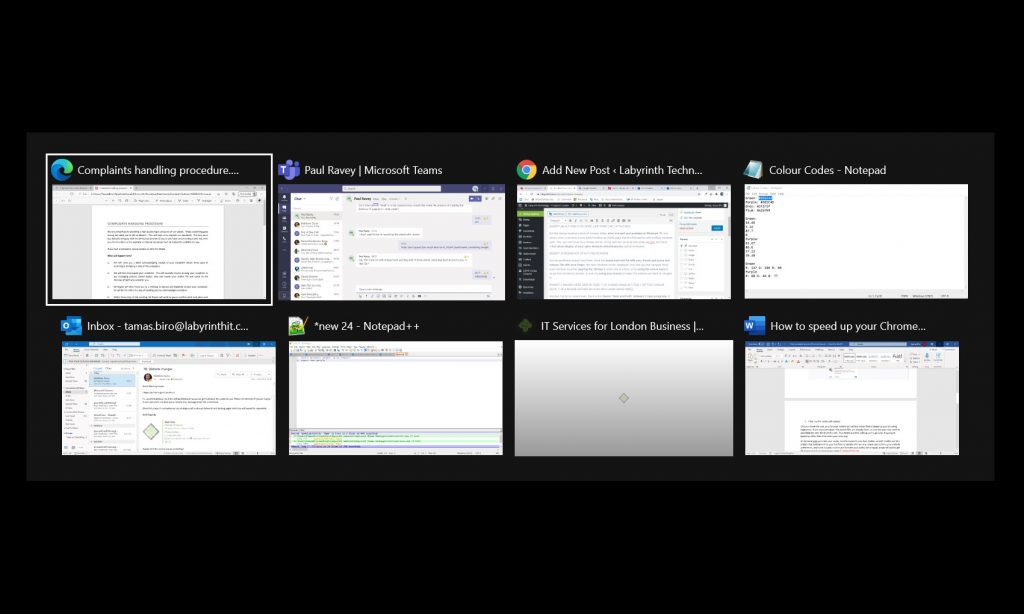
Those of a certain generation will nod their heads in a nostalgic fashion at the mention of Alt+Tab. In the days before a taskbar that showed previews of what programs are open, and indeed what documents are open within each program, the only way to easily get a snake peek at this was to use Alt+Tab. 

But this classic keyboard shortcut remains today, alive and well and available in Windows 10. And what’s more, it remains a very useful function for those users that find themselves with multiple windows open. Yes, you can hover your mouse pointer on the task bar, but to quickly press Alt+Tab and have a full visual display of your open windows simultaneously cannot be beaten. 

And its usefulness doesn’t end there. Once you press and hold Alt with your thumb and press and release Tab with your finger, the open windows remain displayed. And now you can navigate these open windows by either tapping the Tab key to move one at a time, or by using the cursor keys to move from window to window, or even by using your mouse to select the window you want to navigate to. 

And last, but by no means least, there is the classic “back and forth” between 2 open programs. If you are using source data from one window and want to enter it into another, constantly reaching for your mouse can be a pain. So using Alt+Tab is a much easier option. Press and hold Alt with your thumb and press and release Tab twice with your finger, and this navigates back and forth for you. It’s as simple as that. 

How to disable ads in your Chrome browser 

Let’s face it, ads popping up unexpectedly when you are browsing the internet are simply an accepted part of life these days, yes? We are all programmed to close them down on “auto-pilot”, even though they are irritating and annoying. 

So what if you could block ads? Would that make you happy? Keep reading to find out how to disable ads in your Chrome browser! 

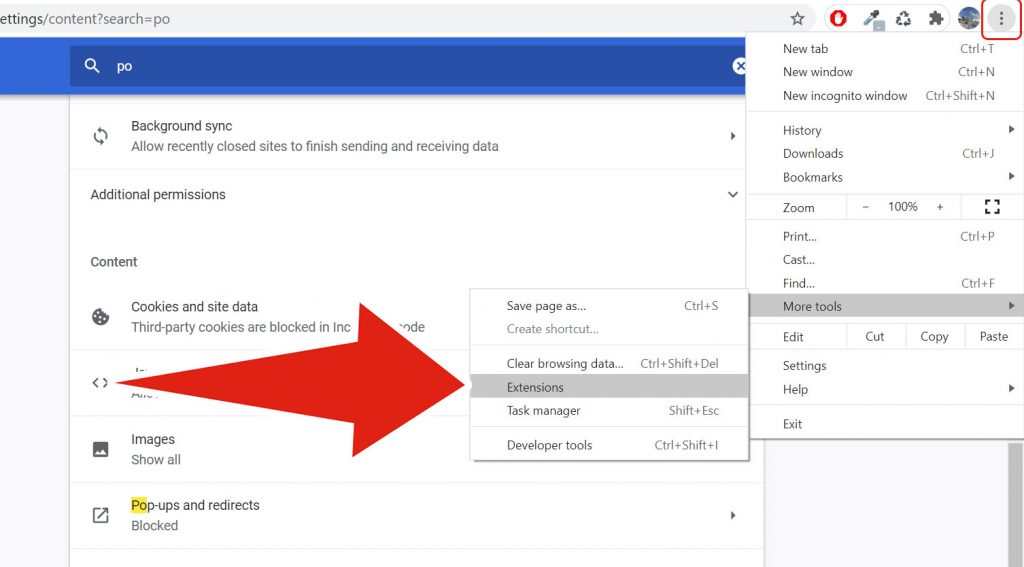
Firstly, launch Google Chrome and click the 3 dots in the upper right-hand corner of the window. In the drop-down menu that appears, click or hover over More toolsand then, from the pop up window that appears, click Extensions to open a new Extensions tab. 

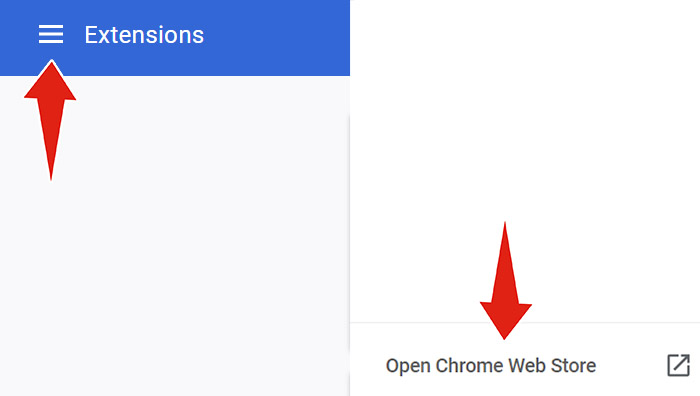
Click the three lines (also known as the “hamburger” button) in the top left of the page, and then the link at the bottom of the menu that slides out called Open Chrome Web Store.  

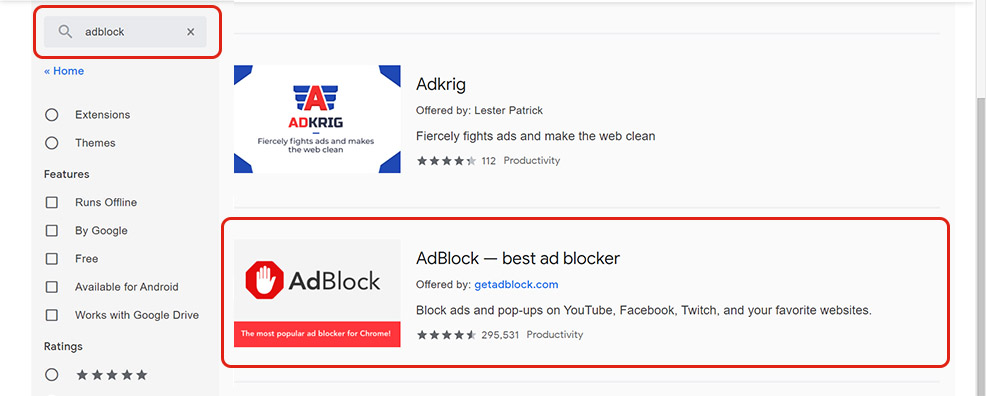
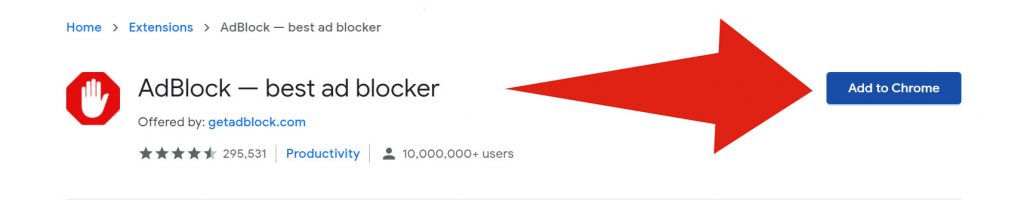
Type “AdBlock” in the “Search the Store” text box and press “Enter.” There should only be (at the moment) 3 results, and you want the one highlighted below. Click the entry to display the extension detail. 

And remember, this is all being done in the official Google Chrome Web Store, and NOT a dodgy third-party website. So, relax and don’t panic!. 

Now click on the Add to Chrome” button which will change to Checking…  

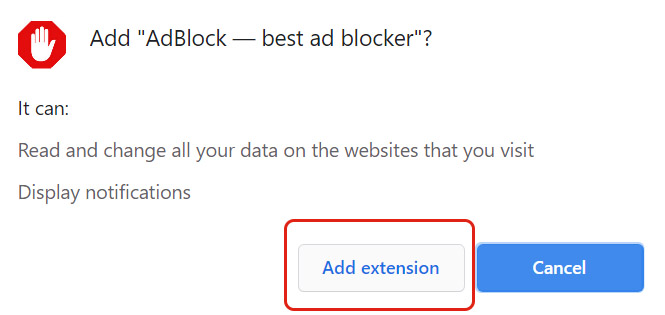
At the same time a pop-up window will appear asking you to confirm that you want to add AdBlocker. Click Add extension. 

Wait a few seconds for Chrome to download and install the AdBlock extension.

You will now be presented with the option to make a donation to the creators of AdBlock. PLEASE BE AWARE THERE IS NO OBLIGATION TO DO THIS AND YOU CAN SIMPLY CLOSE THE WEB PAGE AT THIS POINT. The creators of AdBlocker have made this available at their own expense, and making a donation is entirely your decision. Labyrinth technology would also make clear that we have no connection with the creators of AdBlocker, and receive no financial payments, rewards, or favours of any other kind. We are simply offering this as best advice, and not for any commercial gain. 

Now all you need to do is restart Chrome, and AdBlock prevents ads from displaying in the browser and disables pop-up windows with advertisements. 


Is TeamViewer Safe? The FBI Described It As “Similar To Remote Access Trojans!”

FBI

In the USA right now there is a lot of attention on a cyberattack that successfully gained access to a water treatment plant’s network. The attacker made changes to chemical dosage settings, increasing them to extremely dangerous levels. The FBI has been investigating this attack, and on Tuesday sent out a Private Industry Notification (PIN) on the matter, specifically raising attention to the desktop sharing software TeamViewer.

TV logo

The FBI PIN specifically names TeamViewer after the app was confirmed as the attacker’s entry point into the Oldsmar water treatment plant’s network. According to a Reuters news report, officials confirmed that TeamViewer was used on two separate occasions to remotely connect to a computer on the water treatment plant’s network. During the second breach, the attacker took control of an operator’s mouse, who sat and watched it move on his monitor all by itself!

Since the attack, several cybersecurity experts have been quick to criticise organisations that make use of products such as TeamViewer for the purposes of remote work, calling them “insecure” and “inadequate” for managing sensitive and business-critical data and assets. In addition the FBI said “Beyond its legitimate uses, TeamViewer allows cyber actors to exercise remote control over computer systems and drop files onto victim computers, making it functionally similar to Remote Access Trojans (RATs)”.

so banner

Do YOU use TeamViewer or similar products to facilitate remote working? If you have any concerns over how your remote workforce IT works, and whether it is secure and robust enough in today’s new way of working, please contact us to have a conversation about what you can do to make your business cyber secure.

3 Ways To Stop Microsoft Teams Running Slow 

Have you ever thought that Microsoft Teams is running slowly? Obviously there are several considerations if this happens, such as the quality of your broadband connection, or if someone else on that connection is doing something “bandwidth heavy” (such as your partner downstairs on a separate video call!).  

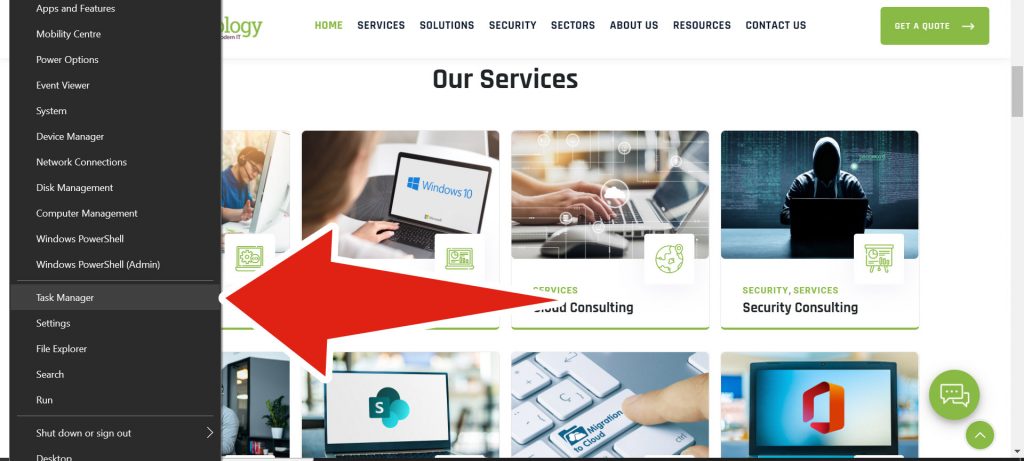
But irrespective of these, Microsoft teams is very memory and CPU usage hungry, which can cause the entire PC to slow down if there is no available memory for other applications to run. This can be particularly noticeable when trying to share your screen, and there is significant “lag”. You can see this for yourself in Task Manager. Simply right click the “Start” button to display the secret start menu” and click on Task Manager. 
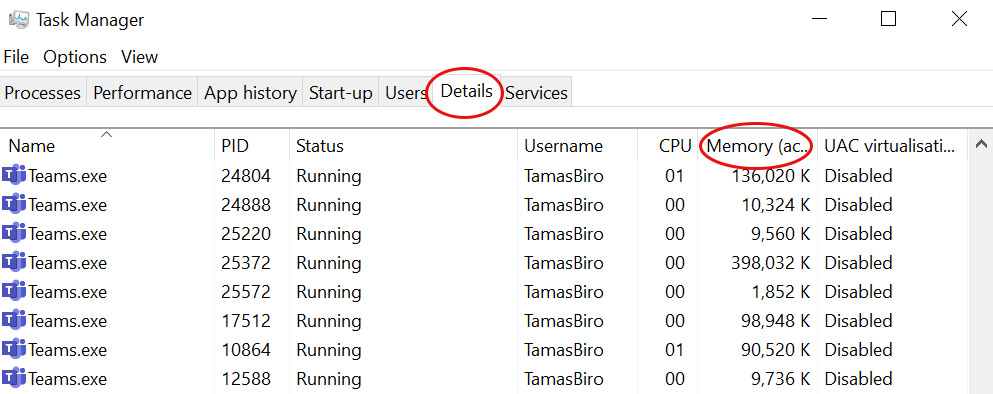
Click on the Details tab, then click on Memory (active private working set), only ONCE to sort the list by the most “memory heavy” applications. Usually you will see Teams right up there at the top of the list, and probably more than once! 
So if you suspect you have an issue, here are 3 simple tips that you can try to yourself to make Microsoft Teams run faster. You may not need to do all of these, and we recommend that you try them in the order below. 

1. Changing the Settings in Microsoft Teams  

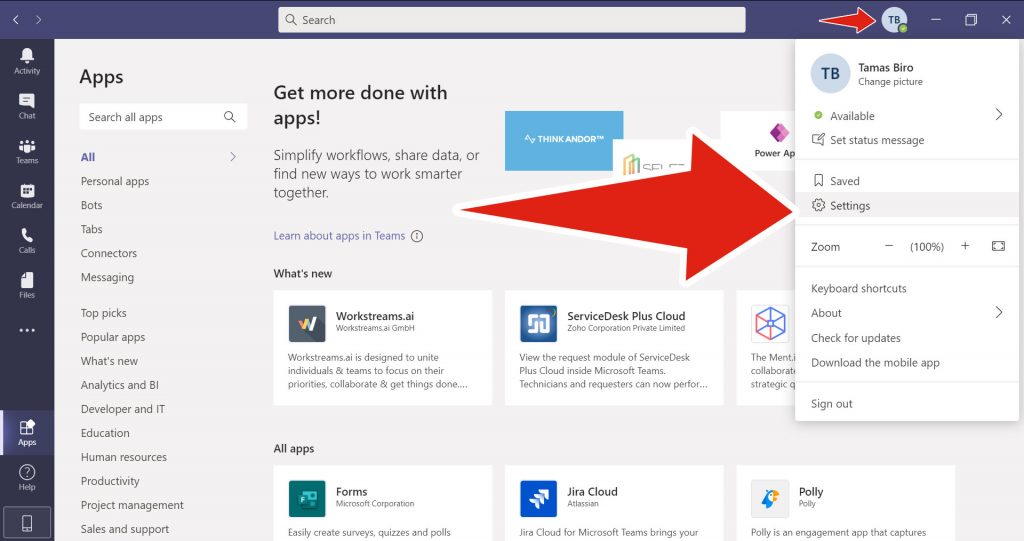
Click on your profile picture and from the drop-down menu select Settings. 
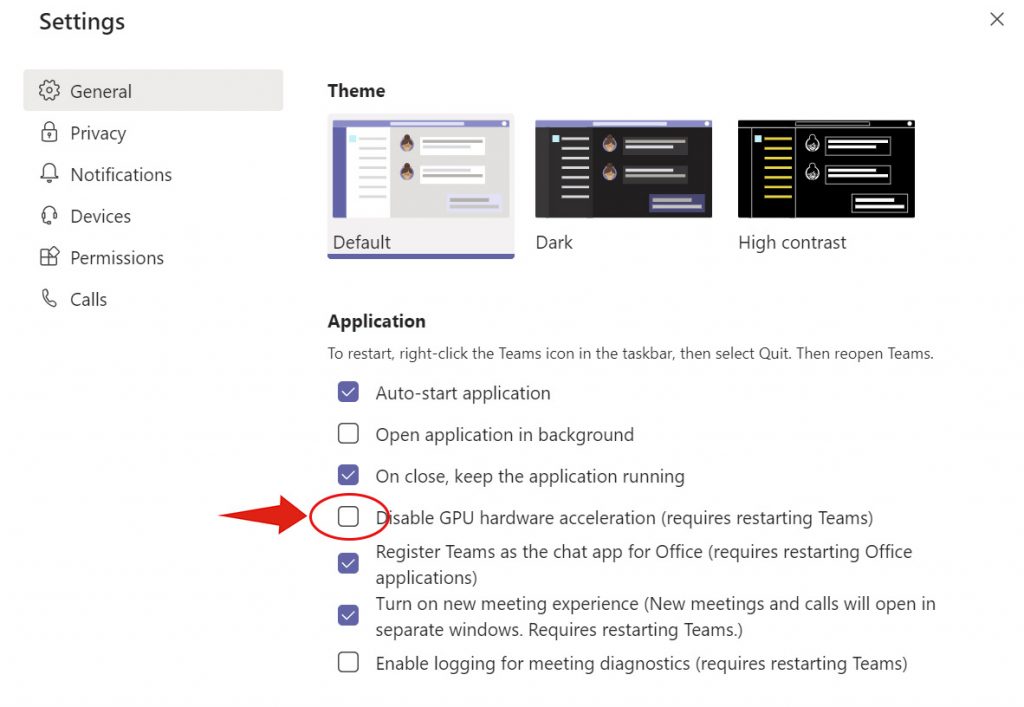
In the pop-up Settings menu that appears, uncheck the box for Disable GPU hardware acceleration and also for Register Teams as the chat app for Office. Once done you will need to re-start the Teams app. 
2. Changing the Settings in Microsoft Outlook 

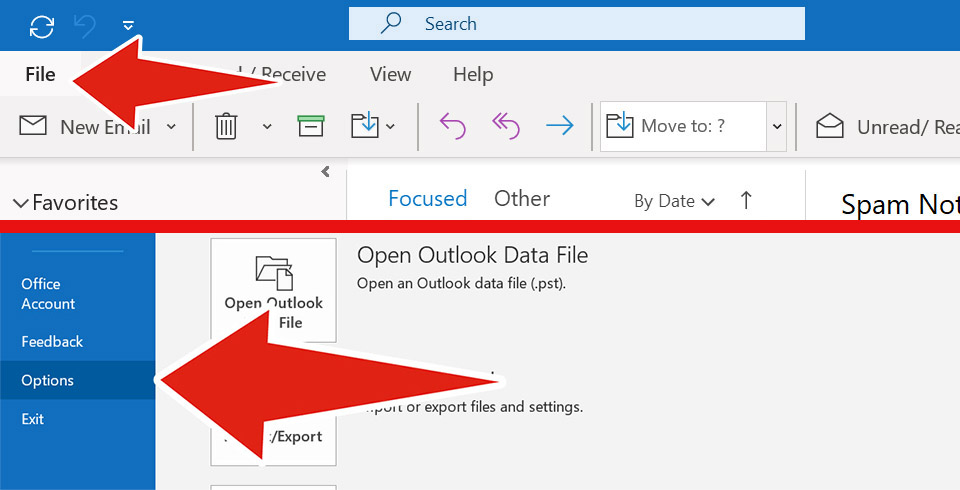
Open Outlook and select File. Then select Options from the Account information screen that appears 
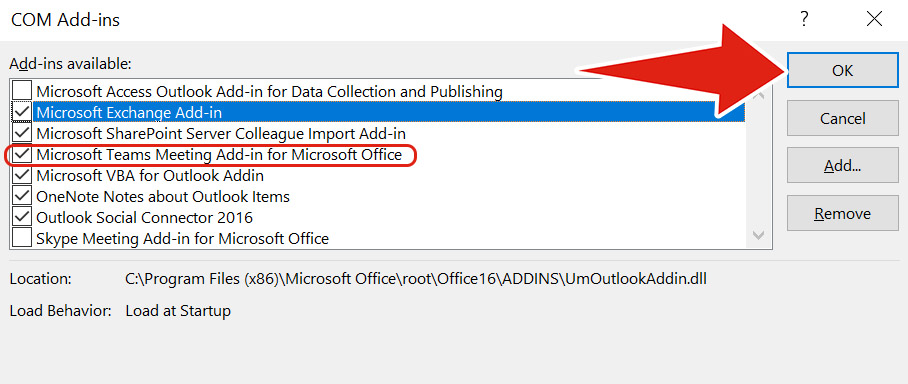
Being very careful to follow these instructions correctly, Select Add-ins, and then Microsoft Teams Meeting Add-in for Microsoft Office. Once this is done, click Go. 
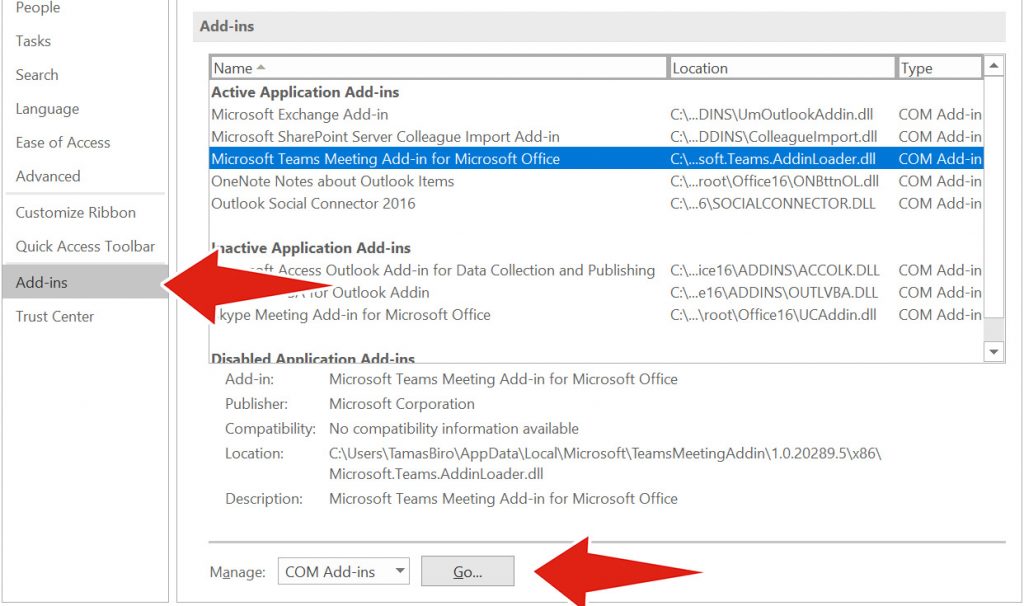
From the pop-up box, locate and uncheck the box for Microsoft Teams Meeting Add-in for Microsoft Office, and click OK to confirm. 
3. Clear the Cache in Windows Explorer (CAUTION; FOLLOW THESE INSTRUCTIONS TO THE LETTER!) 

For those that don’t know, a cache is a reserved storage location that collects temporary data to help websites, browsers, and apps load faster, and Microsoft Teams has its own cache.  

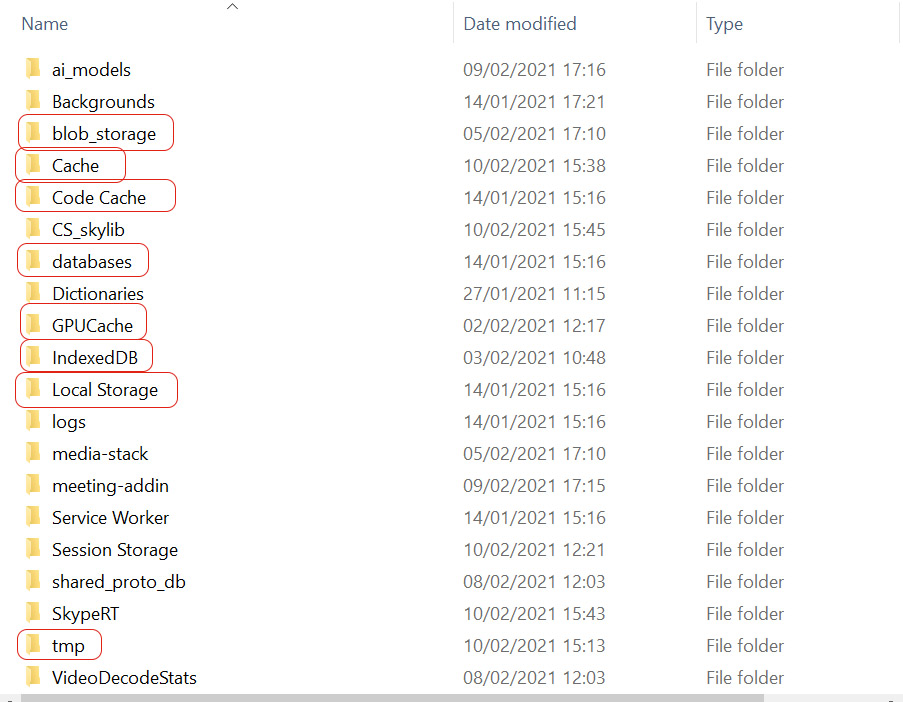
Open Windows Explorer and in the address bar type in to %appdata%\Microsoft\teams (or better still, just copy and paste this from this text). 
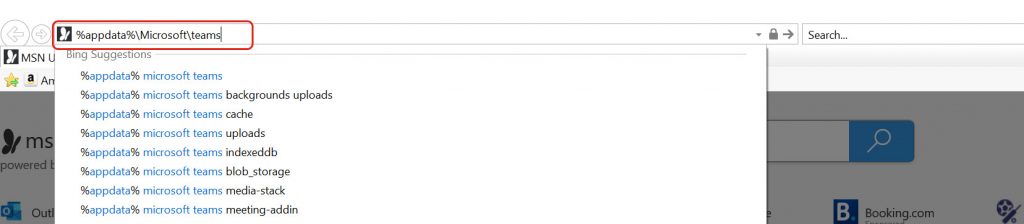
Then do the following very carefully: 

In the folder called blob_storage, delete all files. 

In the folder called Cache, delete all files. 

In the folder called Code Cache, delete all files in it. 

In the folder called databases, delete all files. 

In the folder called GPUCache, delete all files. 

In the folder called IndexedDB, delete the .db file. 

In the folder called Local Storage, delete all files. 

In the folder called tmp, delete all files.